

This checklist is for anyone setting up or refreshing a home office, from a focused daily workspace to a flexible desk used for work and other activities. It covers six practical categories: seating, desk connectivity, screen space, typing, audio, and power.

Get the latest gadgets delivered free with Prime
- Fast, free delivery on millions of items
- Prime Video, Amazon Music and more included
- Member-only deals all year
Each section starts with why the item matters, then points out common shopping missteps and fit or compatibility questions to check. The picks are identified by their product names; confirm the details that matter to your setup before buying.
Use the checklist in the order that matches your biggest need. Measure your space, list the devices you plan to connect, and compare those requirements with each product’s specifications. Prioritize comfort and compatibility for the items you use all day.
Ergonomic Office Chair
A chair is a daily contact point, so the right fit can make a workspace feel more usable through long work sessions. The ELABEST X100 Ergonomic Mesh Office Chair with Footrest is the pick for this slot. Before choosing any chair, check the seat dimensions, height range, armrest adjustments, and the space it needs to move around your desk.
A common mistake is focusing on feature names without checking whether the chair fits your body and room. Compare the listed measurements with a chair that already feels comfortable, and confirm that the seat height works with your desk and feet. A footrest can be useful only if its position suits your posture and the available floor space. Also check the product details for assembly requirements and the intended floor surface. Fit comes first: a long feature list cannot make an unsuitable seat comfortable.
What to look for:
- Compare seat width and depth with your preferred fit.
- Check the seat-height range against your desk.
- Review armrest adjustment details and desk clearance.
- Confirm footrest position and available floor space.
- Check assembly details and floor-surface guidance.
ELABEST X100 Ergonomic Mesh Office Chair with Footrest

The ELABEST X100 is an adjustable mesh office chair with dynamic lumbar support, a reclining backrest, a headrest, and an extendable footrest. Its breathable mesh seat, flip-up armrests, and BIFMA-certified frame support work or gaming use, with a maximum weight recommendation of 300 pounds.
Pros:
- Adjustable lumbar support, headrest, and armrests
- Extendable footrest and reclining backrest
- Breathable mesh construction
- BIFMA-certified structure rated for up to 300 pounds
Cons:
- Assembly is required
- The chair is described for indoor use
Best for: People looking for mesh seating with a footrest
Not ideal for: Shoppers who have not checked chair dimensions or desk fit
Bottom line: Measure your workspace and compare the chair’s specifications with your desk and seating needs before deciding.
USB-C Docking Station
A dock can help organize a desk by bringing device connections together, but its usefulness depends on matching your computer and displays. The Anker Prime DL7400 14-in-1 DisplayLink Docking Station is the pick here. Start by checking your computer’s port capabilities and operating-system support, then compare them with the dock’s requirements.
Do not assume that a port count guarantees the exact setup you need. List every device you want connected, including displays, storage, accessories, and charging needs, then verify the dock’s supported connections and display configuration. Because this model name includes DisplayLink, check the manufacturer’s compatibility and software guidance for your computer before purchase. Confirm that the dock’s cable arrangement will reach comfortably from its intended location. Compatibility is the key: the right dock is the one that supports your specific computer and connected devices.
What to look for:
- Verify computer and operating-system compatibility.
- Match the dock’s ports to every planned accessory.
- Check supported display count, resolution, and connection type.
- Review DisplayLink software requirements and setup guidance.
- Confirm cable reach and desk placement.
Anker Prime DL7400 14-in-1 DisplayLink Docking Station

This docking station connects up to three 4K displays and offers USB-C, USB-A, HDMI, DisplayPort, Ethernet, audio, and SD/TF card ports. It supports laptop charging up to 140W, with a built-in display and fan for monitoring and cooling.
Pros:
- Supports up to three 4K external displays
- Provides up to 140W laptop charging
- Broad selection of ports, including 2.5Gbps Ethernet
- Built-in smart display and fan cooling
Cons:
- Requires a DisplayLink driver for triple-display use
- DRM-protected streaming may show a black screen
- Front USB-C ports do not support video output
Best for: People connecting several devices through one dock
Not ideal for: Shoppers who have not checked computer or display compatibility
Bottom line: Make a connection list and verify each device and display against the dock’s specifications.
Ultrawide Monitor
A wide monitor can give a desk a different layout for work across multiple windows, but it also needs enough room and a compatible connection. The pick is the Samsung 49" Odyssey G93SC Series QD-OLED Curved Gaming Monitor. Before buying, measure the desk’s width and depth and check that the display’s dimensions and stand will fit the intended spot.
A common mistake is choosing a screen by diagonal size alone. Check the full dimensions, curve, stand footprint, and how far you can sit from the display. Then verify your computer and dock can support the monitor through the intended connection at the settings you plan to use. The product name identifies it as a gaming monitor, so consider whether its listed features suit your work tasks as well as any other use. Check the whole setup, including desk space, viewing distance, and compatible display output.
What to look for:
- Measure desk width, depth, and available clearance.
- Review full monitor dimensions and stand footprint.
- Consider viewing distance and the curved screen shape.
- Verify your computer or dock supports the intended connection and settings.
- Compare listed display features with your work needs.
Samsung 49" Odyssey G93SC Series QD-OLED Curved Gaming Monitor

The Samsung Odyssey G93SC is a 49-inch ultrawide curved gaming monitor featuring QD-OLED technology, 240Hz refresh rate, 0.03ms response time, and DisplayHDR True Black 400 for vibrant visuals and smooth gameplay. It offers multiple input options, adjustable ergonomic stand, built-in speakers, and sleek modern design for an immersive gaming setup.
Pros:
- Immersive ultrawide curved display for gaming
- Fast 240Hz refresh rate with 0.03ms response time ensures smooth gameplay
- Vibrant visuals with DisplayHDR True Black 400
Cons:
- High-end monitor may be expensive for some users
- Large size requires ample desk space
- Limited to specific input ports which may not suit all devices
Best for: People with desk space for a 49-inch curved display
Not ideal for: Anyone whose desk or computer setup cannot accommodate its dimensions
Bottom line: Measure your desk and confirm compatible display output before choosing this monitor.
Mechanical Keyboard
Keyboard layout affects how your hands reach the keys and how much room remains on the desk. This pick is the Kinesis Freestyle Edge RGB Plus Split Mechanical Keyboard with Linear. The product name indicates a split design, so check its layout and configuration details carefully before deciding whether it suits your typing habits.
A common buying mistake is assuming that a split keyboard will feel natural immediately or that every model uses familiar key spacing and shortcuts. Review the key layout, adjustment options, connection method, and any setup requirements. Check what “Linear” refers to in the full product specifications and whether that switch type matches your preferred feel. Make sure the keyboard fits alongside your mouse and other desk equipment, and confirm that its cable or connections work with your computer. Layout and feel matter: compare the actual configuration with the way you type, not just the category name.
What to look for:
- Review the exact key layout and spacing.
- Check split adjustment and positioning details.
- Confirm switch specifications and preferred typing feel.
- Verify computer connection and setup requirements.
- Measure desk room for the keyboard and mouse.
Kinesis Freestyle Edge RGB Plus Split Mechanical Keyboard with Linear Switches

A programmable split mechanical keyboard with RGB lighting, hot-swappable linear switches, and detachable palm supports. It includes Mac keycaps and a lift kit, and connects via USB-A.
Pros:
- Split ergonomic design
- Fully programmable with RGB lighting
- Hot-swappable linear switches
- Includes detachable palm supports and lift kit
Cons:
- AZERTY layout may not suit users who prefer other layouts
- Requires a USB-A connection
Best for: Typists interested in a split mechanical keyboard
Not ideal for: People who prefer a familiar one-piece layout without adjustment
Bottom line: Check the layout, switch details, and desk fit against your typing preferences.
Wireless Noise-Canceling Headphones
Headphones can help create a more focused listening setup, especially when desk work includes calls or audio. The pick is the Focal Bathys MG Wireless Headphones with Active Noise Cancellation. Before choosing them, review the full specifications for device compatibility, wireless connection options, microphone and call details, and charging requirements.
A common mistake is treating noise cancellation as a substitute for checking how headphones work with your actual devices and routines. Confirm how they connect to your computer and phone, whether the controls suit your workflow, and what the manufacturer says about active noise cancellation and call use. If you wear headphones for extended periods, look for fit and comfort information and consider whether the design works for your listening sessions. Check the included accessories and charging connection too. Match them to your routine: the right choice depends on your devices, calls, fit, and listening preferences.
What to look for:
- Verify wireless and wired connection options for your devices.
- Review microphone and call-use specifications.
- Check active noise-cancellation controls and modes.
- Consider fit and comfort for longer listening sessions.
- Confirm charging details and included accessories.
Focal Bathys MG Wireless Headphones with Active Noise Cancellation

The Focal Bathys MG wireless headphones deliver high-fidelity sound with active noise cancelling, featuring magnesium speaker drivers for natural and detailed audio. They offer over 30 hours of battery life, premium materials, and a comfortable, lightweight design for immersive listening on the go.
Pros:
- Exceptional sound quality with natural, detailed audio
- Long battery life of over 30 hours
- Premium, lightweight, and comfortable design
- Active noise cancelling for immersive listening
Cons:
- Premium price may be high for some users
- Bulkier design compared to smaller headphones
Best for: People seeking wireless headphones with active noise cancellation
Not ideal for: Shoppers who have not confirmed call, device, or fit requirements
Bottom line: Check compatibility, call features, and comfort details against your daily listening routine.
Surge Protector Power Strip
Power is easy to overlook when planning a home office, but the outlet arrangement needs to suit the devices on your desk. The pick is the GE Surge Protector Power Strip with 2 Tethered USB Ports. Count the devices you expect to plug in and compare their plugs and power needs with the product specifications.
Do not assume that a power strip’s outlet count, spacing, or surge-protection details match your setup. Check the listed electrical ratings, outlet arrangement, cord length, and manufacturer guidance for connecting your equipment. The product name specifies two tethered USB ports; review their details and whether they suit the devices you intend to charge. Make sure the cord can reach the wall outlet without crossing a walkway, and place the strip where its controls and connected plugs remain accessible. Plan the layout first so the strip fits your desk and the devices you need to power.
What to look for:
- Match outlet count and spacing to your plugs.
- Check electrical ratings and surge-protection specifications.
- Review cord length and placement options.
- Confirm details for the two tethered USB ports.
- Keep the strip accessible and route the cord safely.
GE Surge Protector Power Strip with 2 Tethered USB Ports
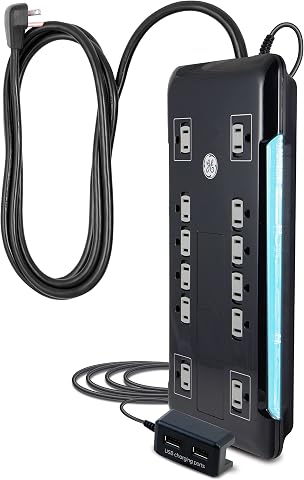
This surge protector features 12 outlets, including two USB ports for charging devices. It has an 8-foot extension cord, space-saving design, and surge protection with a 4320 joule rating, ensuring safety and reliability for home or office use.
Pros:
- Multiple outlets and USB ports for versatile charging
- Long extension cord for flexible placement
- High surge protection rating for safety
Cons:
- Limited to 120V electrical system
- No mention of smart or energy-saving features
Best for: People who want a strip with two tethered USB ports
Not ideal for: Setups whose plug, cord, or power needs do not match its specifications
Bottom line: Compare the strip’s ratings, layout, and cord reach with every device and outlet location.
Build your buying order around what will affect daily work most: start with chair fit and the devices your computer must connect, then plan screen space and typing, followed by audio and power organization. Adjust that order to your current setup, and measure before you buy so each item has a practical place.
You do not need to solve every part of the workspace at once. Use the checklist to confirm the details that matter to you, then make each addition with comfort and compatibility in mind. A thoughtful setup can grow one well-matched item at a time.