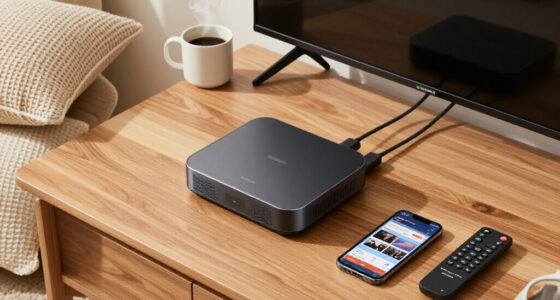

USB-C docking stations turn a single laptop port into a full workstation, but the differences between models come down to display support, power delivery, and port count — not just price. My top overall pick is the Anker Prime 14-in-1 Docking Station, which pairs dual HDMI output with the most generous port spread in this lineup. The Acer 13-in-1 with Triple Display Support stands out if you run three monitors, while the budget-friendly Selore 8-in-1 with Dual HDMI covers the basics for less. The main tradeoff: higher port counts usually mean bigger enclosures, hotter operation, and tighter laptop compatibility requirements. Read on for the full breakdown of all 13 models.

Get the latest gadgets delivered free — and shop member deals
- Fast, free delivery on millions of items
- Access to Prime Big Deal Days deals on October 6–7
- Prime Video, Amazon Music and more included
Complete the kit



Key Takeaways
- The Anker Prime 14-in-1 earns the top spot by balancing dual-monitor output, strong power delivery, and better build quality than generic high-port-count rivals like the 14-in-1 Dual HDMI and DisplayPort model.
- Triple-display support (Acer 11-in-1 and Acer 13-in-1) is the single biggest dividing line in this lineup — most Windows laptops can use it, but MacBook users should plan on dual displays at most.
- Several 8-in-1 hubs (Anker Nano, Selore, Anker 8-in-1 Dual HDMI) overlap heavily in ports; the real differentiators are passthrough charging wattage and cable quality, not the port list.
- Legacy video ports matter more than expected: the HoDo 8-in-1 and LIONWEI 13-in-1 include VGA or DisplayPort, which older monitors and projectors still need — most Anker and Acer models skip these.
- The Dell WD25 is the only business-first dock here, but its proprietary styling and narrower port mix make it a niche choice compared with the universal USB-C alternatives.
| Anker Nano 8-in-1 USB-C Hub with Dual Monitor Support |  | Best Portable Pick | Ports: 8 | Video: 2× HDMI, up to dual 4K at 60 Hz (Windows) | USB data: Up to 10 Gbps | VIEW LATEST PRICE | See Our Full Breakdown |
| Selore 8-in-1 USB-C Docking Station with Dual HDMI |  | Best Budget Dual-Monitor Option | Ports: 2 HDMI, 1 USB-C PD, 1 USB-C data, 2 USB-A 3.0, SD/microSD | Video: Up to 4K at 60Hz per display | USB data speed: Up to 5 Gbps | VIEW LATEST PRICE | See Our Full Breakdown |
| Acer 11-in-1 USB-C Docking Station for Three Monitors |  | Best for Multi-Monitor Power Users | Ports: 11 total: 2 HDMI, 1 DisplayPort, 2 USB-C, 2 USB-A, Ethernet, SD/MicroSD | Max single display: 8K at 30Hz (DisplayPort); 4K at 60Hz (HDMI) | Max triple display: 4K/60Hz + 4K/60Hz + 1080p/60Hz | VIEW LATEST PRICE | See Our Full Breakdown |
| 12-in-1 USB-C Docking Station with Dual 4K HDMI |  | Best Port Variety for the Desk | Ports: 12 total | Video: 2× HDMI, up to 4K | USB-A: 4 ports (2× USB 3.0, 2× USB 2.0) | VIEW LATEST PRICE | See Our Full Breakdown |
| Acer 9-in-1 USB-C Docking Station with Dual HDMI |  | Best Charging Output for Power-Hungry Laptops | Ports: 2 HDMI, 3 USB-A, 1 USB-C data, SD and microSD | Video: Dual HDMI, 4K at 60Hz | USB data speed: 5 Gbps | VIEW LATEST PRICE | See Our Full Breakdown |
| 14-in-1 USB-C Laptop Docking Station with Dual HDMI and DisplayPort |  | Best Port Variety on a Budget | Ports: 2 HDMI, DisplayPort, USB-C PD, USB-C, 2 USB-A 3.1, USB-C 2.0, 2 USB-A 2.0, SD/Micro SD, Ethernet, 3.5 mm audio | Power Input: Up to 100W | Charging Output: Up to 87W | VIEW LATEST PRICE | See Our Full Breakdown |
| Acer 13-in-1 USB-C Docking Station with Triple Display Support |  | Best for Triple-Monitor Windows Setups | Ports: 2 HDMI, DisplayPort 1.4, 4 USB-C (incl. host), 3 USB-A, Gigabit Ethernet, 3.5 mm AUX, SD/microSD | Display Support: Up to 3 independent displays on compatible Windows laptops | Max Resolution: Triple 4K at 30 Hz with DSC | VIEW LATEST PRICE | See Our Full Breakdown |
| Anker Prime 14-in-1 Docking Station with Dual HDMI Displays |  | Best for Charging Heavyweights | Configuration: 14-in-1 with 11 data ports | Total Power Output: 160 W | USB-C Charging: Up to 100 W per port across three ports | VIEW LATEST PRICE | See Our Full Breakdown |
| HoDo 8-in-1 USB-C Docking Station with Dual HDMI, DisplayPort, and VGA |  | Best for Legacy Monitors and Projectors | Video Outputs: 2 HDMI, 1 DisplayPort, 1 VGA | HDMI Resolution: Up to 4K at 60 Hz and 4K at 30 Hz | DisplayPort Resolution: Up to 4K at 60 Hz | VIEW LATEST PRICE | See Our Full Breakdown |
| Dell Pro Laptop Docking Station WD25 |  | Best for Managed Dell Workspaces | Model: WD25 | Power Delivery: 100W | Total Ports: 10 (6 USB, 1 HDMI, DisplayPort, Ethernet) | VIEW LATEST PRICE | See Our Full Breakdown |
| Anker 8-in-1 USB-C Hub with Dual HDMI |  | Best Trusted Brand for Dual HDMI | Ports: USB-C PD-IN, 2 USB-A, 2 HDMI, Ethernet, microSD/SD card reader | Power Delivery: Pass-through charging up to 85W | Single display output: Up to 4K@60Hz | VIEW LATEST PRICE | See Our Full Breakdown |
| Selore 14-in-1 USB-C Docking Station for Dual Monitors |  | Most Ports for the Money | Ports: 14 | Video outputs: 2 HDMI, 1 VGA | USB data ports: 3 USB 3.1 A/C up to 10 Gbps, 4 USB-A ports | VIEW LATEST PRICE | See Our Full Breakdown |
| LIONWEI 13-in-1 USB-C Docking Station with Dual 4K HDMI and DisplayPort |  | Best for Triple-Display Windows Setups | Ports: 13 | Video outputs: 2 HDMI, 1 DisplayPort | HDMI resolution: Up to 4K@60Hz with DP 1.4 source | VIEW LATEST PRICE | See Our Full Breakdown |
| USB-C docking station | Ports | Compatibility |
|---|---|---|
| Anker Nano 8-in-1 USB-C Hub wi | 8 | Windows 10/11, ChromeOS, USB4, Thunderbolt |
| Selore 8-in-1 USB-C Docking St | 2 HDMI, 1 USB-C PD, 1 USB-C data, 2 USB-A 3.0, SD/microSD | Full-featured USB-C or Thunderbolt 3/4 laptops |
| Acer 11-in-1 USB-C Docking Sta | 11 total: 2 HDMI, 1 DisplayPort, 2 USB-C, 2 USB-A, Ethernet, SD/MicroSD | Thunderbolt 3/4/5 or USB-C with DisplayPort Alt Mode |
| 12-in-1 USB-C Docking Station | 12 total | — |
| Acer 9-in-1 USB-C Docking Stat | 2 HDMI, 3 USB-A, 1 USB-C data, SD and microSD | Full-featured USB-C with video, charging, and data |
| 14-in-1 USB-C Laptop Docking S | 2 HDMI, DisplayPort, USB-C PD, USB-C, 2 USB-A 3.1, USB-C 2.0, 2 USB-A 2.0, SD/Micro SD, Ethernet, 3.5 mm audio | USB-C or Thunderbolt 3/4/5 laptops with video output support |
| Acer 13-in-1 USB-C Docking Sta | 2 HDMI, DisplayPort 1.4, 4 USB-C (incl. host), 3 USB-A, Gigabit Ethernet, 3.5 mm AUX, SD/microSD | — |
| Anker Prime 14-in-1 Docking St | — | Windows 10/11, ChromeOS; not Linux |
| HoDo 8-in-1 USB-C Docking Stat | — | — |
| Dell Pro Laptop Docking Statio | — | Windows 10/11, Ubuntu 24.04, RHEL 9.6+, ChromeOS 137 |
| Anker 8-in-1 USB-C Hub with Du | USB-C PD-IN, 2 USB-A, 2 HDMI, Ethernet, microSD/SD card reader | USB-C, USB4, Thunderbolt; Windows 10/11, ChromeOS |
| Selore 14-in-1 USB-C Docking S | 14 | — |
| LIONWEI 13-in-1 USB-C Docking | 13 | Mac and Windows laptops |
More Details on Our Top Picks
Anker Nano 8-in-1 USB-C Hub with Dual Monitor Support
At 3.84 oz and roughly the size of a short pencil case, this Anker hub is the one to grab if your dock needs to travel. Most multi-port options in this roundup — like the Acer 11-in-1 or the 12-in-1 dock — are desk-bound slabs, while the Nano slips into a laptop sleeve without a second thought. The port selection punches above its weight class: 10 Gbps data transfer, dual 4K/60Hz HDMI output on Windows, and 85 W pass-through charging, which is more throughput than the Selore 8-in-1 offers at 5 Gbps. Tradeoffs are real, though. Like nearly every dock here, macOS users get mirroring only, not extended displays. And with no charger or cable in the box, plus no Linux support, you’ll want to budget for extras and check your OS before committing.
Pros:- Genuinely portable at under 4 oz with a slim footprint
- 10 Gbps USB data — double the speed of most 8-in-1 rivals
- Dual 4K at 60 Hz extended displays on Windows
- 85 W pass-through charging covers most mainstream laptops
Cons:- No charger or cable included, so real cost is higher than the sticker suggests
- macOS mirrors displays instead of extending them
Best for: Students and hybrid commuters who need dual-monitor output and card readers in a bag-friendly form factor
Not ideal for: MacOS users wanting two independent extended displays, or Linux laptop owners — neither is supported
- Ports:8
- Video:2× HDMI, up to dual 4K at 60 Hz (Windows)
- USB data:Up to 10 Gbps
- Laptop charging:Up to 85 W (100 W PD input)
- Card slots:SD and TF 3.0, up to 104 MB/s
- Compatibility:Windows 10/11, ChromeOS, USB4, Thunderbolt
- Weight:3.84 oz
Our verdict“If you split time between home and office and want dual monitors without lugging a brick, this is the most travel-friendly dock in the lineup.”
Selore 8-in-1 USB-C Docking Station with Dual HDMI
This Selore covers the essentials — two HDMI outputs, 85 W charging, and card readers — for buyers who don’t want to pay extra for ports they won’t touch. Compared with the Anker Nano 8-in-1, you give up the faster 10 Gbps data speed and settle for 5 Gbps, which matters if you regularly move large files off an SSD. The USB-C data port plus two USB-A ports give you sensible peripheral spacing, and the 100 W PD input is generous for the category. The catch is a familiar one: macOS mirrors rather than extends, and the dock only outputs video from a full-featured USB-C or Thunderbolt port, so older USB-C ports that only charge will leave your monitors dark. No charger in the box either.
Pros:- Dual HDMI extended displays on Windows at up to 4K at 60Hz
- 85 W laptop charging keeps your desk cable count down
- SD and microSD readers built in
- Straightforward plug-and-play setup
Cons:- 5 Gbps data transfer lags the 10 Gbps Anker Nano
- No power adapter or charging cable included
- Requires a full-featured USB-C or Thunderbolt port to output video
Best for: Windows laptop owners who want a basic two-monitor desk setup without paying for premium features
Not ideal for: Anyone with a data-only USB-C port, or MacBook users who need two independent screens rather than mirrored ones
- Ports:2 HDMI, 1 USB-C PD, 1 USB-C data, 2 USB-A 3.0, SD/microSD
- Video:Up to 4K at 60Hz per display
- USB data speed:Up to 5 Gbps
- Laptop charging:Up to 85W output (100W PD input)
- Display modes:Windows MST extended; macOS mirroring only
- Compatibility:Full-featured USB-C or Thunderbolt 3/4 laptops
Our verdict“A sensible no-frills choice if dual monitors are your priority and you’re happy with standard-speed data transfers.”
Acer 11-in-1 USB-C Docking Station for Three Monitors
Three external displays is where this Acer pulls away from the dual-HDMI crowd. While the Selore 8-in-1 and Acer 9-in-1 stop at two monitors, this one drives triple displays at 4K/4K/1080p, all at 60Hz, plus an 8K/30Hz single-display mode over DisplayPort for high-resolution workstations. The 10 Gbps USB-C data rate matches the Anker Nano and doubles the Selore, and Gigabit Ethernet rounds out a genuinely complete port list. The tradeoffs are scale-related: it’s a heavier, desk-anchored design that makes no sense as a travel hub, the power adapter is sold separately, and the same macOS mirroring limitation applies — Mac users get duplicated screens, not three independent ones. It also demands a Thunderbolt 3/4/5 or DisplayPort Alt Mode port, which rules out budget laptops with basic USB-C.
Pros:- Triple external displays supported, up to 4K at 60Hz each
- 8K at 30Hz single-display output via DisplayPort
- 10 Gbps USB-C data and Gigabit Ethernet on board
- 85 W laptop charging handles power-hungry machines
Cons:- Power adapter and cable not included despite the large port count
- macOS mirrors all external displays instead of extending
- Overkill in size and cost if you only need one or two monitors
Best for: Windows power users, traders, and productivity workstations that genuinely need three external displays plus wired networking
Not ideal for: MacBook owners and anyone with a basic USB-C port — neither can take advantage of the triple-display setup
- Ports:11 total: 2 HDMI, 1 DisplayPort, 2 USB-C, 2 USB-A, Ethernet, SD/MicroSD
- Max single display:8K at 30Hz (DisplayPort); 4K at 60Hz (HDMI)
- Max triple display:4K/60Hz + 4K/60Hz + 1080p/60Hz
- USB-C data:Up to 10 Gbps
- Laptop charging:Up to 85W (100W input)
- Ethernet:Gigabit, 1000Mbps
- Compatibility:Thunderbolt 3/4/5 or USB-C with DisplayPort Alt Mode
Our verdict“The pick for Windows users whose workflow depends on three screens — everyone else should save money with a dual-display dock.”
12-in-1 USB-C Docking Station with Dual 4K HDMI
If your problem is ‘not enough ports’ rather than ‘not enough monitors’, this 12-in-1 is built for you. It counters the Acer 11-in-1’s three displays with something different: four USB-A ports and two USB-C 3.0 data ports, plus simultaneous SD/TF reading — the widest peripheral spread in this batch. The aluminum alloy enclosure also makes it feel more like a permanent desk fixture than the plasticky competition. Two things hold it back. Video tops out at dual 4K HDMI with no DisplayPort, so high-refresh or 8K monitor owners should look at the Acer 11-in-1 instead. And data speeds max at 5 Gbps across the board, meaning large file transfers will feel slower than on the Anker Nano or Acer 11-in-1’s 10 Gbps ports. As with the others, Macs mirror rather than extend.
Pros:- 12 ports including 4 USB-A and 2 USB-C 3.0 data ports
- Up to 100W pass-through charging, the highest in this batch
- Sturdy aluminum alloy build suited to permanent desk duty
- Simultaneous SD and TF card reading
Cons:- 5 Gbps max data speed despite the high port count
- No DisplayPort output limits monitor flexibility versus the Acer 11-in-1
- Dual displays mirror rather than extend on Mac
Best for: Desk-bound users with lots of USB accessories — keyboards, drives, headsets, card media — who need everything connected at once
Not ideal for: Anyone needing DisplayPort output or fast 10 Gbps transfers — this dock covers breadth, not speed
- Ports:12 total
- Video:2× HDMI, up to 4K
- USB-A:4 ports (2× USB 3.0, 2× USB 2.0)
- USB-C:2× USB 3.0
- Power delivery:Up to 100W pass-through
- Ethernet:Gigabit, up to 1000Mbps
- Card readers:SD and TF, simultaneous reading
- Material:Aluminum alloy
Our verdict“Choose this when peripheral count matters more than display count — it’s the connect-everything option, not the fastest one.”
Acer 9-in-1 USB-C Docking Station with Dual HDMI
The standout spec here is 90 W of charging delivered to the laptop — the highest output in this batch, and enough headroom for 16-inch Windows machines that throttle on the 85 W offered by the Selore 8-in-1 and Anker Nano. The built-in 0.65 ft cable also eliminates the dangling-connector problem: you snap it to your laptop with the lock button and forget it. Port selection is competent rather than extravagant — dual 4K/60Hz HDMI, three USB-A and one USB-C at 5 Gbps, plus card readers — which makes it a cleaner, more focused desk companion than the sprawling 12-in-1 station. Just note the fine print: you must supply your own 100 W-or-higher adapter, Macs only mirror, and a basic USB-C port won’t cut it — it needs full video plus Power Delivery support.
Pros:- 90 W laptop charging output — highest in this group
- Built-in short cable with lock button keeps the desk tidy
- Dual 4K at 60Hz HDMI plus both SD and microSD readers
- Solid aluminum alloy construction
Cons:- Requires a separate 100W or higher power adapter, not included
- Only one USB-C data port limits modern peripheral setups
- macOS external displays mirror the same content
Best for: Owners of larger Windows laptops (16-inch class) that draw more than 85 W under load
Not ideal for: MacBook users wanting extended dual displays, or buyers expecting a charger in the box — a high-wattage adapter is required separately
- Ports:2 HDMI, 3 USB-A, 1 USB-C data, SD and microSD
- Video:Dual HDMI, 4K at 60Hz
- USB data speed:5 Gbps
- Laptop charging:Up to 90W output (100W input)
- Cable:0.65 ft built-in with lock button
- Body material:Aluminum alloy
- Compatibility:Full-featured USB-C with video, charging, and data
Our verdict“The right pick if your laptop needs serious wattage — just remember to add a 100W adapter to your cart.”
14-in-1 USB-C Laptop Docking Station with Dual HDMI and DisplayPort
For buyers who count ports before anything else, this 14-in-1 hub covers nearly every base: three video outputs, four USB-A ports split between 10 Gbps and 480 Mbps speeds, Gigabit Ethernet, dual card readers, and audio. Compared with the HoDo 8-in-1, it trades VGA for faster USB 3.1 data ports, which matters far more if you regularly move large files from SD cards or external drives. The catch is everything that is not in the box: there is no power adapter or charging cable, so you will need to supply your own to hit the 87W charging output. MacBook users should also know that all external monitors mirror the same image rather than extending the desktop.
Pros:- 14 ports covering video, data, networking, cards, and audio
- 4K at 60 Hz output on HDMI 1 or DisplayPort when used individually
- Gigabit Ethernet plus SD and microSD readers in one device
- 10 Gbps USB 3.1 data speeds for fast file transfers
Cons:- No power adapter or charging cable included
- MacBook external displays mirror rather than extend
- Display features require a USB-C port with DP Alt Mode
Best for: Windows laptop owners who want maximum connectivity from a single hub and already own a USB-C charger
Not ideal for: MacBook users needing extended multi-monitor desktops, since external displays only mirror
- Ports:2 HDMI, DisplayPort, USB-C PD, USB-C, 2 USB-A 3.1, USB-C 2.0, 2 USB-A 2.0, SD/Micro SD, Ethernet, 3.5 mm audio
- Power Input:Up to 100W
- Charging Output:Up to 87W
- Ethernet:10/100/1000 Mbps
- USB 3.1 Speed:Up to 10 Gbps
- Video Output:Up to 4K at 60 Hz on HDMI 1 or DisplayPort individually
- Compatibility:USB-C or Thunderbolt 3/4/5 laptops with video output support
Our verdict“A strong pick for Windows users who want the widest port selection per dollar, provided they bring their own charger.”
Acer 13-in-1 USB-C Docking Station with Triple Display Support
Of the display-focused docks in this lineup, the Acer 13-in-1 stands out for doing the triple-display job properly: unlike the 14-in-1 dual HDMI station, it aims for three independent screens on compatible Windows laptops, and it arrives with the hardware to back that up — a bundled 110W adapter, a USB 4.0 cable, and an aluminum body with a security lock slot. That last detail makes it a better fit for shared or office desks than plastic-bodied rivals. The tradeoffs are real, though: triple 4K tops out at 30 Hz and requires DSC support from your laptop, macOS users get mirroring only, and the rear USB-C port carries data but no video or charging.
Pros:- Up to three independent displays on compatible Windows laptops
- 110W power adapter and USB 4.0 cable included
- Aluminum body with integrated security lock slot
- Up to 100W host charging over USB-C PD
Cons:- Triple 4K limited to 30 Hz and requires DSC-compatible hardware
- macOS supports mirrored displays only
- Rear USB-C port is data-only
Best for: Windows power users running three-monitor productivity setups who want everything included in the box
Not ideal for: MacBook owners wanting extended displays, and laptops without DSC support for triple 4K
- Ports:2 HDMI, DisplayPort 1.4, 4 USB-C (incl. host), 3 USB-A, Gigabit Ethernet, 3.5 mm AUX, SD/microSD
- Display Support:Up to 3 independent displays on compatible Windows laptops
- Max Resolution:Triple 4K at 30 Hz with DSC
- Power Adapter:110W included
- Host Charging:Up to 100W USB-C PD
- Body:Aluminum with security lock slot
Our verdict“The most complete package here for a three-screen Windows workstation, as long as your laptop can drive it.”
Anker Prime 14-in-1 Docking Station with Dual HDMI Displays
Where most docks in this roundup treat charging as an afterthought, the Anker Prime puts 160 W of total power at the center of the design — enough to run a laptop at 100 W while simultaneously topping up three other devices. Compared with the 14-in-1 dual HDMI station, which leaves you to source your own adapter, the Anker arrives ready and distributes power intelligently across its three USB-C and multiple USB-A ports. The compromises sit on the display side: dual HDMI tops out at 2K at 60 Hz, well below the 4K output of the Acer 13-in-1, macOS mirrors rather than extends, ultrawide 5120 × 1440 panels are unsupported, and Linux users are left out entirely.
Pros:- 160 W total output with up to 100 W on a single USB-C port
- Charges up to four devices at once
- 10 Gbps data transfer across 11 data ports
- Includes a 100 W, 10 Gbps USB-C upstream cable
Cons:- Display output limited to 2K at 60 Hz, not 4K
- No Linux compatibility
- macOS mirrors identical content on both external monitors
Best for: Desk setups where a laptop, phone, tablet, and accessories all need charging alongside moderate dual-display output
Not ideal for: Linux users and anyone needing 4K external monitors or ultrawide 5120 × 1440 support
- Configuration:14-in-1 with 11 data ports
- Total Power Output:160 W
- USB-C Charging:Up to 100 W per port across three ports
- Simultaneous Charging:Up to 4 devices
- Data Speed:Up to 10 Gbps
- Displays:Dual HDMI, up to 2K at 60 Hz with DP 1.4
- Compatibility:Windows 10/11, ChromeOS; not Linux
Our verdict“The pick when powering multiple devices matters more than pushing high-resolution video.”
HoDo 8-in-1 USB-C Docking Station with Dual HDMI, DisplayPort, and VGA
The HoDo earns its place for one reason no other dock here can match: a built-in VGA output. If your workflow involves older projectors, conference-room displays, or legacy monitors, that analog port saves you from hunting for adapters — the Anker Prime and Acer 13-in-1 offer nothing comparable. It can drive up to four displays depending on your laptop, with respectable 4K at 60 Hz on HDMI and DisplayPort. The tradeoff is dated data connectivity: all three USB-A ports run at USB 2.0 speeds, so large file transfers will crawl, and plugging in VGA caps that display at 1080p. Like its rivals, it needs a DP Alt Mode USB-C port and its own power adapter (65W or better, not included).
Pros:- Four video output types: 2 × HDMI, DisplayPort, and VGA
- 4K at 60 Hz support on HDMI and DisplayPort
- Up to 87W pass-through charging to the laptop
- Supports up to four displays depending on setup
Cons:- All USB-A ports limited to USB 2.0 speeds
- VGA connections capped at 1080p
- Power adapter not included
Best for: Anyone who still presents on VGA projectors or uses older monitors alongside modern HDMI displays
Not ideal for: Users who transfer large files often — USB 2.0 ports max out at 480 Mbps
- Video Outputs:2 HDMI, 1 DisplayPort, 1 VGA
- HDMI Resolution:Up to 4K at 60 Hz and 4K at 30 Hz
- DisplayPort Resolution:Up to 4K at 60 Hz
- VGA Resolution:Up to 1080p
- USB Ports:3 × USB 2.0, up to 480 Mbps
- Power Delivery:100W input, 87W output (adapter not included)
Our verdict“A niche but genuinely useful pick for mixed old-and-new display setups, if slow USB ports do not bother you.”
Dell Pro Laptop Docking Station WD25
The WD25 plays a different game from the universal hubs above it. This is a commercial-grade dock built for IT-managed fleets: it integrates with Dell’s cloud-based console for remote management, supports an unusually broad OS range including Ubuntu, Red Hat Enterprise Linux, and ChromeOS (the Linux-friendly answer to the Anker Prime, which skips Linux entirely), and carries genuine sustainability credentials with 65% postconsumer recycled materials. With 100W power delivery and support for up to four high-resolution displays, it handles demanding workstations. The compromises: only one HDMI port alongside DisplayPort — fewer direct video outputs than the Acer 13-in-1 — and its management features only shine inside the Dell ecosystem, so non-Dell buyers are paying for tools they cannot use.
Pros:- Cloud-based remote management through Dell’s console
- Broad OS support including Ubuntu, RHEL, and ChromeOS
- 100W power delivery for demanding workstations
- 65% postconsumer recycled materials and up to 72% standby power reduction
Cons:- Management features primarily benefit Dell laptops
- Only one HDMI port despite four-display support
- Heavier desk-bound form factor than portable hubs in this lineup
Best for: Businesses standardizing on Dell laptops that need fleet-managed, Linux-compatible docking
Not ideal for: Non-Dell home users, who give up the cloud management benefits while still facing a single HDMI port
- Model:WD25
- Power Delivery:100W
- Total Ports:10 (6 USB, 1 HDMI, DisplayPort, Ethernet)
- Display Support:Up to 4 high-resolution displays
- Compatibility:Windows 10/11, Ubuntu 24.04, RHEL 9.6+, ChromeOS 137
- Material:65% postconsumer recycled materials
- Dimensions:8.07″ L × 3.54″ W × 1.39″ H, 1.2 lbs
Our verdict“An IT-department dock first and foremost — pick it for managed Dell fleets, not a mixed home setup.”
Anker 8-in-1 USB-C Hub with Dual HDMI
This option stands out for brand reliability and a clean, focused port selection: dual HDMI, USB-A, Ethernet, and card readers, all fed by 85W pass-through charging. Compared with the Selore 14-in-1, it trades sheer port count for a simpler layout that’s easier to keep organized at a desk or in a bag. The video story is the real differentiator — a single display runs at a sharp 4K@60Hz, while two displays drop to 4K@30Hz, which is fine for productivity but not ideal for fast-motion content. Buyers should also note that a 100W charger and USB-C cable aren’t included, so factor that into the total cost. This pick makes the most sense for Windows or ChromeOS users who value a dependable name over maximum connectivity.
Pros:- Single-display output up to 4K@60Hz for crisp desktop use
- 85W pass-through charging keeps a laptop powered while docked
- Broad compatibility with Windows 10/11, ChromeOS, USB4, and Thunderbolt
- Compact, focused port set that’s easy to travel with
Cons:- Dual displays mirror identical content on macOS and drop to 4K@30Hz
- Required 100W wall charger and USB-C cable are not included
- No Linux support at all
Best for: Windows or ChromeOS laptop owners who want a reputable-brand hub for one high-quality 4K monitor plus everyday peripherals
Not ideal for: Mac users wanting extended dual displays — macOS mirrors both screens — and Linux users, who aren’t supported at all
- Ports:USB-C PD-IN, 2 USB-A, 2 HDMI, Ethernet, microSD/SD card reader
- Power Delivery:Pass-through charging up to 85W
- Single display output:Up to 4K@60Hz
- Dual display output:Up to 4K@30Hz
- Compatibility:USB-C, USB4, Thunderbolt; Windows 10/11, ChromeOS
- Linux support:Not compatible
Our verdict“A dependable dual-HDMI hub for Windows and ChromeOS users who prioritize brand trust and 4K@60Hz single-display quality over raw port count.”
Selore 14-in-1 USB-C Docking Station for Dual Monitors
If the Anker 8-in-1 is the minimalist choice, this Selore is the opposite: fourteen ports covering dual HDMI, VGA, Ethernet, seven USB ports, card readers, and a 3.5 mm audio jack. That VGA output is rare in this lineup and lets you connect aging projectors or legacy office monitors that the LIONWEI 13-in-1 simply can’t reach. Data transfer is a strong point too, with USB 3.1 speeds up to 10 Gbps on its A/C ports. The tradeoffs are real: the plastic enclosure feels less premium than Anker’s build, Mac users get mirror mode only, and the USB ports can’t output video — so plan your monitor connections through HDMI and VGA. This model is better suited to budget-conscious Windows users with a mixed bag of old and new gear.
Pros:- VGA output alongside dual HDMI for legacy projectors and older monitors
- USB 3.1 A/C data transfer up to 10 Gbps
- Includes audio jack, card readers, and Ethernet in one hub
- Plug-and-play operation with no driver installation
Cons:- Mac display support is limited to mirroring
- USB ports do not support video output, restricting monitor flexibility
- Plastic enclosure feels less durable than competing metal-built docks
Best for: Windows users with legacy equipment — VGA projectors, older monitors, and lots of USB peripherals — who want one dock to connect everything
Not ideal for: Mac users needing extended displays, since only mirrored screens are supported
- Ports:14
- Video outputs:2 HDMI, 1 VGA
- USB data ports:3 USB 3.1 A/C up to 10 Gbps, 4 USB-A ports
- Card readers:SD and microSD, up to 200 Mbps
- Ethernet:1000 Mbps
- Power Delivery:Up to 100W input; 87W charging output
- Audio:3.5 mm
- Video compatibility:Requires DisplayPort Alternate Mode or Thunderbolt; Mac limited to mirroring
Our verdict“The connectivity Swiss Army knife of this roundup — ideal for Windows users juggling legacy VGA gear and many peripherals, but Mac owners should look elsewhere.”
LIONWEI 13-in-1 USB-C Docking Station with Dual 4K HDMI and DisplayPort
This pick makes the most sense for Windows power users running three screens: dual HDMI plus a DisplayPort, all capable of 4K@60Hz with a DP 1.4 source. That gives it a resolution edge over both the Selore 14-in-1 (which tops out lower on its analog VGA path) and the Anker 8-in-1 (limited to 4K@30Hz in dual-display mode). At just 140 g, it’s also surprisingly portable for a triple-display dock, and the 18-month warranty adds reassurance. Two caveats shape the buying decision: macOS extends to only one external monitor, and the dock itself consumes 13W of the 100W input, leaving 87W for charging — still plenty for most laptops, but worth knowing. Compared with similar 13-in-1 options here, its DisplayPort output at full 4K/60 is the standout differentiator.
Pros:- Triple-display support for Windows at up to 4K@60Hz per output
- DisplayPort output for monitors that lack HDMI
- Gigabit Ethernet and 10 Gbps USB data transfer
- Lightweight 140 g build with an 18-month warranty
Cons:- macOS can extend to only one external monitor
- Dock consumes 13W of the 100W input, leaving 87W for charging
- 4K@60Hz on HDMI requires a DP 1.4 source laptop
Best for: Windows desktop-replacement users who want three sharp 4K displays and a full peripheral loadout from one lightweight dock
Not ideal for: MacBook users wanting multi-monitor extension, since macOS extends to just one external screen
- Ports:13
- Video outputs:2 HDMI, 1 DisplayPort
- HDMI resolution:Up to 4K@60Hz with DP 1.4 source
- USB data transfer:Up to 10 Gbps
- Power Delivery:Up to 100W input; up to 87W laptop charging
- Ethernet:Gigabit
- Audio:3.5 mm audio/mic combo jack
- Compatibility:Mac and Windows laptops
- Weight:140 g
Our verdict“The strongest choice in this trio for Windows users building a triple-4K workstation on a budget, provided you’re not on a Mac.”

How We Picked
I ranked these USB-C docking stations on four factors that actually shape daily use: display output (how many monitors, at what resolution, through which ports), power delivery (whether the dock can charge your laptop while in use, and at how many watts), port versatility (the mix of USB-A, USB-C, Ethernet, SD cards, and legacy video), and build and reliability signals like cable length, enclosure material, and thermal behavior under load. Because these docks sell at very different price points, I also weighed value — a hub that costs half as much and covers 90% of the same use cases ranks competitively against feature-flagship models.
The ranking logic favors docks that solve a specific buyer problem well rather than models with the longest spec sheet. Products with triple-display support rank high for power users, compact 8-in-1 hubs rank high for travelers and students, and docks with legacy VGA or DisplayPort fill gaps the mainstream picks ignore. Compatibility caveats — especially MacBook display limits — factored into every placement, because a dock’s port count means nothing if your laptop can’t drive it.
Factors to Consider When Choosing USB-C Docking Stations
Before picking a dock from the list above, it helps to understand what actually separates a smart purchase from an expensive mistake. These are the factors I weighed most heavily — and the common pitfalls buyers hit with USB-C docking stations.Know Your Laptop’s Display Limits First
The dock’s spec sheet is only half the equation — your laptop determines what’s actually possible. Many Windows laptops with Thunderbolt or modern USB4 can drive two or three external displays through a single USB-C port, while MacBooks with base M-series chips support only one external display natively, regardless of what the dock offers. Buying the Acer 13-in-1 for triple monitors on a base-model MacBook wastes most of its capability. Check your laptop manufacturer’s display support documentation before choosing, and match the dock’s video outputs to what your machine can genuinely deliver.
Power Delivery: Charging Watts Make or Break the Setup
A dock that can’t charge your laptop at full speed forces you to run a second cable, defeating the purpose of a one-cable workstation. Look for at least 65W passthrough charging for smaller laptops and 90W or more for gaming or workstation machines. Also check where the power connects — some docks in this category require their own power adapter for full performance, while others pass through your existing charger. Underspecced power delivery is the most common cause of laptops slowly draining during heavy use while docked.
Port Count vs. Ports You’ll Actually Use
Marketing leans hard on the ’14-in-1′ number, but a dock stuffed with ports you never touch is dead weight — often literally, since high-count docks are bulkier and run warmer. My advice: list the devices you plug in daily, then add one or two spare ports. A writer with a monitor, keyboard, mouse, and occasional SD card needs an 8-in-1 hub, not a triple-display monster. Gamers and content creators with capture cards, external drives, and multiple displays are the ones who justify the 13- and 14-port models.
DisplayPort, HDMI, and VGA: Matching Your Existing Monitors
Video output types vary widely across this category, and adapters add cost and clutter. If your monitors have DisplayPort inputs, a dock like the LIONWEI 13-in-1 or the 14-in-1 model with DisplayPort output gives you cleaner cabling than HDMI-to-DisplayPort conversion. VGA still matters for conference rooms and older projectors, which is why the HoDo 8-in-1 exists despite VGA feeling antiquated. HDMI 2.0 is the safe baseline here — it handles 4K at 60Hz — but if you want higher refresh rates on a gaming monitor, verify which HDMI version the dock uses before buying.
Driver-Free vs. Driver-Dependent Designs
Most docks in this roundup use DisplayLink or similar chipsets to multiply video outputs, which means installing drivers — and those drivers can conflict with VPN software, screen-recording tools, or corporate IT policies. Driver-free docks that use the laptop’s native display pipeline are simpler and more reliable but cap out at fewer monitors. Business users locked down by IT should confirm driver installation is permitted before buying any multi-display dock. This is also why the Dell WD25, with its enterprise-first design, appeals to office fleets even though it looks overpriced next to generic alternatives.
Build Quality and Thermals on High-Port Docks
Pushing multiple 4K signals and 100W of charging through a palm-sized plastic box generates real heat, and cheap enclosures throttle or drop connections when they get warm. Established brands like Anker and Acer tend to use better thermal designs and braided cables than no-name high-count docks, which is part of why they rank higher despite similar spec sheets. Cable quality and strain relief matter too — the short tethered cable on many budget hubs is the first failure point. If a dock will live permanently on a desk, weight and a non-slip base matter more than portability; if it travels, the reverse is true.
Frequently Asked Questions
Can I connect three monitors to any of these docking stations with a MacBook?
Not reliably. Base-model Apple Silicon MacBooks (M1, M2, M3, and base M4 chips) support only a single external display natively, so even triple-display docks like the Acer 11-in-1 will only extend to one screen without workarounds. Some docks use DisplayLink drivers to bypass this limitation, but performance varies and driver updates can lag macOS releases. If you’re on a MacBook and need multiple monitors, either confirm DisplayLink support explicitly or consider a Mac with a Pro or Max chip. Windows laptop users rarely face this problem, which is why the triple-display docks rank higher for that audience.
Is a higher port count always the better buy?
No — port count is the most overrated metric in this category. A 14-in-1 dock costs more, takes more desk space, runs hotter, and often spreads its bandwidth thinner across ports than a focused 8-in-1 hub. If your daily setup is one monitor, a keyboard, a mouse, and occasional file transfers, an 8-in-1 model like the Anker Nano or Selore covers everything with money left over. The high-count docks earn their price only when you genuinely use multiple displays, wired Ethernet, SD cards, and several USB peripherals simultaneously. Buy for your actual desk, not your imagined one.
Do these docking stations charge my laptop, or do I need a separate charger?
Most docks in this roundup support passthrough charging, meaning you connect your laptop’s USB-C charger to the dock and it powers both the dock and the laptop through a single cable. The key spec is the wattage delivered to the laptop — smaller ultrabooks are happy with 65W, while larger performance laptops want 90W or 100W to avoid slow battery drain under load. Check whether the dock includes its own power adapter or expects you to supply one, since that affects the true cost. Underspecced charging is the most common complaint with budget hubs, so verify the wattage against your laptop’s requirements before buying.
Why would I pick a dock with VGA in 2026?
VGA sounds obsolete, but conference rooms, school projectors, and older office monitors still rely on it — particularly in corporate and education environments where replacing display infrastructure is slow. The HoDo 8-in-1 includes VGA precisely for these situations, letting you present anywhere without carrying a stack of adapters. If you never encounter VGA displays, skip it and choose a dock with better HDMI or DisplayPort specs instead, since VGA-supporting docks often compromise elsewhere. It’s a classic case of a ‘legacy’ port being a genuine feature for the right buyer and dead weight for everyone else.
Beyond port count, you’re paying for power delivery capacity, thermal engineering, cable quality, and long-term firmware support. Budget hubs often share bandwidth across ports, drop 4K signals to 30Hz, or run hot enough to disconnect devices during long sessions. Premium docks deliver full-speed charging, stable 4K at 60Hz across multiple displays, and better component quality that holds up to daily plug cycles. That said, if your needs are modest — one monitor, a couple of USB devices — a well-reviewed budget hub does the job, and spending more buys capability you’ll never touch. Match the spend to your actual setup.
Conclusion
For most buyers, the Anker Prime 14-in-1 is the best overall pick — it combines dual HDMI output, strong charging, and dependable build in one package. If budget leads the decision, the Selore 8-in-1 with Dual HDMI is the best value, covering the core single-or-dual-monitor setup without the premium price. Power users running three screens should go straight to the Acer 13-in-1 with Triple Display Support, my pick for high-density workstations. Beginners and students will find the Anker 8-in-1 Dual HDMI the easiest entry point — simple, driver-light, and hard to misconfigure. For specific needs: choose the LIONWEI 13-in-1 for DisplayPort setups, the HoDo 8-in-1 for VGA projectors and legacy monitors, and the Dell WD25 for managed corporate fleets. Whichever route you take, confirm your laptop’s display and charging limits first — the right dock is the one your machine can actually drive.
Fall Picks
fall essentials
As an affiliate, we earn on qualifying purchases.