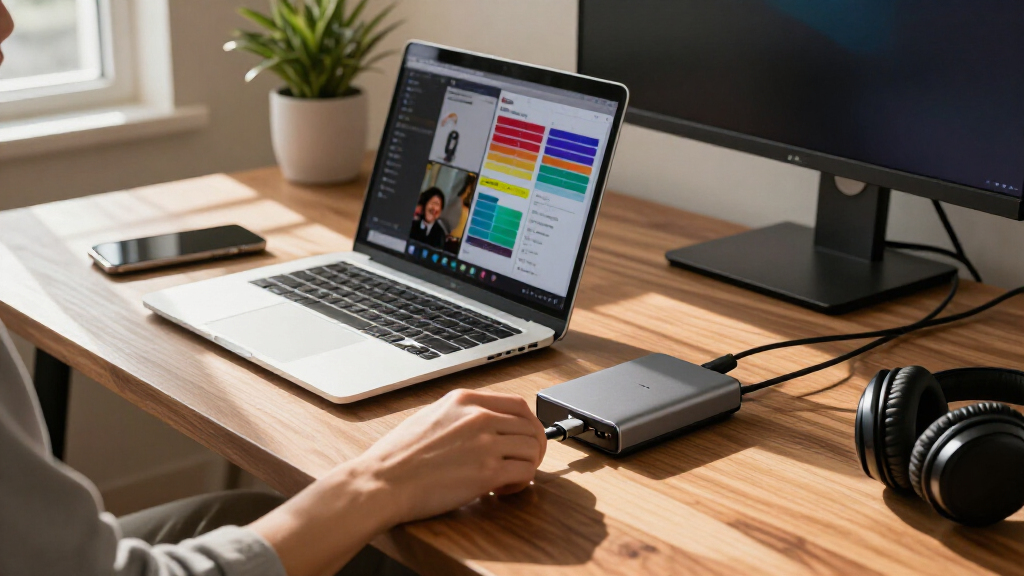

For most people, I’d start with the Anker PowerExpand 8-in-1 USB-C Hub for its useful mix of everyday connections and dual-monitor support. The Selore 14-in-1 stands out when a desk needs more ports, while the HP USB-C G5 Essential Dock is a more office-focused option. The main tradeoffs are how many displays you can run, whether your laptop supports the dock’s display method, and how much power and desk space the setup requires. More ports do not automatically mean better compatibility or simpler use. Read on for how all 13 USB-C docking stations compare and which type of buyer each one suits.

Get the latest gadgets delivered free — and shop member deals
- Fast, free delivery on millions of items
- Access to Prime Big Deal Days deals on October 6–7
- Prime Video, Amazon Music and more included
Complete the kit



Key Takeaways
- The Anker PowerExpand 8-in-1 is the strongest everyday starting point: it balances a practical port count and dual-HDMI support without stepping into a larger, more elaborate dock.
- Port count separates the bigger desktop options from compact hubs: the Selore 14-in-1, Anker Prime 14-in-1, and LIONWEI 13-in-1 suit setups with many connected peripherals better than the 8-in-1 models.
- Triple-display labels need a compatibility check: the Acer 11-in-1 and Acer 13-in-1 are aimed at multi-screen desks, but host laptop graphics, USB-C capabilities, and operating system support still determine the result.
- Power delivery claims are not the same as laptop charging in practice: the HoDo lists 100W Power Delivery and the MOKiN lists built-in 160W power, so buyers should check the dock’s actual laptop-facing output and included power arrangement.
- Detachable and compact designs trade desk simplicity for flexibility: the Anker Nano 13-in-1 with its detachable 6-in-1 hub can serve more than one setup, while simpler 8-in-1 models are easier to keep connected at one workstation.
| HoDo 8-in-1 USB-C Docking Station with Dual HDMI, DisplayPort, VGA, and 100W Power Delivery |  | Best for Mixed-Generation Monitors | Total ports: 8 | Video outputs: 2 HDMI, 1 DisplayPort, 1 VGA | HDMI resolution: Up to 4K at 60Hz on one port and 4K at 30Hz on the other | VIEW LATEST PRICE | See Our Full Breakdown |
| Selore 8-in-1 USB-C Docking Station with Dual HDMI |  | Best Value for Everyday Windows Setups | Total ports: 8 | HDMI: 2 ports, up to 4K at 60Hz | USB data ports: 1 USB-C and 2 USB-A, up to 5Gbps | VIEW LATEST PRICE | See Our Full Breakdown |
| Anker Nano 8-in-1 USB-C Hub with Dual HDMI |  | Best for Fast Peripheral Data | Ports: 8-in-1 | Video outputs: 2 HDMI; dual 4K at 60Hz with compatible DP 1.4 host and DSC 3:1 | USB data: Up to 10Gbps | VIEW LATEST PRICE | See Our Full Breakdown |
| Anker PowerExpand 8-in-1 USB-C Hub with Dual HDMI |  | Best Compact Pick with Ethernet | Total ports: 8 | HDMI: 2 ports; one display up to 4K at 60Hz or two at 4K at 30Hz | USB-A: 2 data ports | VIEW LATEST PRICE | See Our Full Breakdown |
| Selore 14-in-1 USB-C Docking Station for Dual Monitors |  | Best for Port Variety and Multi-Display Windows Setups | Total ports: 14 | Video outputs: 2 × 4K HDMI and 1 VGA | USB data: Up to 10Gbps; USB 2.0 ports up to 480Mbps | VIEW LATEST PRICE | See Our Full Breakdown |
| MOKiN Docking Station Dual Monitor with 2 HDMI Built-in 160W Power |  | Best for High-Power Desk Setups | Laptop power delivery: Up to 100W | Total power: 160W | HDMI: 2 ports, up to 4K at 60Hz | VIEW LATEST PRICE | See Our Full Breakdown |
| HP USB-C G5 Essential Dock, Black |  | Best for a Minimal Single-Port Setup | Form factor: Compact dock | Color: Black | Specified port: 1 SuperSpeed USB Type-C | VIEW LATEST PRICE | See Our Full Breakdown |
| Anker Nano 13-in-1 Laptop Docking Station with Detachable 6-in-1 USB-C Hub |  | Best for Desk-and-Travel Flexibility | Port count: 13-port dock with detachable 6-in-1 USB-C hub | Display outputs: 2 HDMI and 1 DisplayPort | Display modes: Single 4K at 60Hz; dual 2K at 60Hz; triple 1080p at 60Hz | VIEW LATEST PRICE | See Our Full Breakdown |
| Acer 11-in-1 USB-C Docking Station for Triple Monitors |  | Best for Triple-Display Windows Desks | Total ports: 11 | Display outputs: 2 HDMI and 1 DisplayPort | Maximum single-display resolution: 8K at 30Hz via DisplayPort or 4K at 60Hz via HDMI | VIEW LATEST PRICE | See Our Full Breakdown |
| Acer 9-in-1 USB-C Docking Station with Dual HDMI |  | Best for Dual-HDMI Simplicity | Ports: 2 HDMI, 3 USB-A, 1 USB-C, SD, and MicroSD | HDMI output: Dual 4K at 60Hz | USB data speed: Up to 5Gbps | VIEW LATEST PRICE | See Our Full Breakdown |
| Acer 13-in-1 USB-C Laptop Docking Station with Triple Display Support |  | Best for Triple-Display Windows Setups | Display outputs: 2 HDMI and 1 DisplayPort 1.4 | Maximum display setup: Up to three independent displays on compatible Windows laptops using MST | Maximum stated resolution: Triple 4K at 30 Hz with a compatible DSC-enabled Windows laptop and GPU | VIEW LATEST PRICE | See Our Full Breakdown |
| Anker Prime 14-in-1 Docking Station with Dual HDMI |  | Best for High-Power, High-Port Setups | Connectivity: 14-in-1 with 10 USB ports | Total power output: Up to 160W | USB-C charging: Up to 100W per port | VIEW LATEST PRICE | See Our Full Breakdown |
| LIONWEI 13-in-1 USB-C Docking Station with Dual HDMI and DisplayPort |  | Best for 4K60 Display Flexibility | Total ports: 13 | Video outputs: 2 HDMI and 1 DisplayPort | Maximum resolution: Up to 4K at 60 Hz | VIEW LATEST PRICE | See Our Full Breakdown |
| USB-C docking station | Compatibility |
|---|---|
| HoDo 8-in-1 USB-C Docking Stat | USB-C with DisplayPort Alt Mode; Thunderbolt 3/4 |
| Selore 8-in-1 USB-C Docking St | Windows and macOS devices with a full-featured USB-C or Thunderbolt port |
| Anker Nano 8-in-1 USB-C Hub wi | Windows 10/11, ChromeOS, and compatible USB-C, USB4, or Thunderbolt devices |
| Anker PowerExpand 8-in-1 USB-C | USB-C, USB4, and Thunderbolt; Windows 10/11 and ChromeOS |
| Selore 14-in-1 USB-C Docking S | Windows and Mac devices with supported USB-C, Thunderbolt 3, or DisplayPort Alternate Mode |
| MOKiN Docking Station Dual Mon | MacBook Pro/Air, Dell, HP, Lenovo, and other USB-C laptops |
| HP USB-C G5 Essential Dock | — |
| Anker Nano 13-in-1 Laptop Dock | USB-C and Thunderbolt 3/4/5 laptops; Windows 10 or later |
| Acer 11-in-1 USB-C Docking Sta | Thunderbolt 3/4/5 or full-featured USB-C; Chrome OS, Linux, Windows, and macOS |
| Acer 9-in-1 USB-C Docking Stat | Windows and macOS devices with USB-C DisplayPort Alt Mode |
| Acer 13-in-1 USB-C Laptop Dock | — |
| Anker Prime 14-in-1 Docking St | USB-C, USB4, and Thunderbolt; Windows 10 and 11, ChromeOS, and supported macOS devices; Linux not supported |
| LIONWEI 13-in-1 USB-C Docking | — |
More Details on Our Top Picks
HoDo 8-in-1 USB-C Docking Station with Dual HDMI, DisplayPort, VGA, and 100W Power Delivery
The HoDo earns its place through unusually broad video compatibility: dual HDMI, DisplayPort, and VGA give buyers more ways to connect older and newer monitors than the Selore 8-in-1 USB-C Docking Station with Dual HDMI. That flexibility can help in offices where screens have different inputs, and laptop charging reaches 87W output when paired with a suitable power adapter. The tradeoff is that its three USB connections are only USB 2.0, so it suits keyboards, mice, and other low-bandwidth accessories better than fast storage. Quad-display use is limited to 1080p, VGA tops out at 1080p, and macOS mirrors external displays rather than extending the desktop. I’d choose it for varied monitor hookups, not for fast data transfers or Mac multi-monitor workflows.
Pros:- Four video connector types cover a wider mix of monitor generations than the Selore 8-in-1.
- Supports up to 4K at 60Hz on select HDMI and DisplayPort connections.
- Provides up to 87W of laptop charging output with a compatible power adapter.
- Three USB ports offer convenient connections for low-bandwidth peripherals.
Cons:- USB 2.0 transfer speeds are slow for external drives and frequent file transfers.
- macOS mirrors external displays instead of extending them.
- The power adapter is not included, and VGA is limited to 1080p.
Best for: Windows or ChromeOS users connecting a mix of HDMI, DisplayPort, and older VGA monitors, with basic peripherals and laptop charging.
Not ideal for: Mac users who need separate extended desktops, or anyone regularly transferring files through the dock’s USB ports.
- Total ports:8
- Video outputs:2 HDMI, 1 DisplayPort, 1 VGA
- HDMI resolution:Up to 4K at 60Hz on one port and 4K at 30Hz on the other
- DisplayPort resolution:Up to 4K at 60Hz
- USB ports:3 USB 2.0 ports, up to 480 Mbps
- Power delivery:Up to 100W input and 87W laptop output
- Compatibility:USB-C with DisplayPort Alt Mode; Thunderbolt 3/4
- Weight:0.13 kg
Our verdict“Choose the HoDo if your monitors use a mix of modern and legacy video inputs, but skip it if fast USB data or extended Mac displays matter.”
Selore 8-in-1 USB-C Docking Station with Dual HDMI
The Selore is a sensible everyday pick for a compatible Windows laptop: it pairs two HDMI outputs with USB-A, USB-C, SD, and microSD connections, covering common desk and card-transfer needs without the extra video formats of the HoDo 8-in-1 USB-C Docking Station. Its aluminum enclosure and up to 85W charging output make it a tidy single-cable companion, though the charger and cable must be supplied separately. The headline dual-display capability has a clear platform limit: supported Windows laptops can extend across screens, while macOS mirrors them. Compared with the Anker Nano 8-in-1 USB-C Hub, the Selore’s stated USB data speed is lower and its dual-4K-at-60Hz support is less specifically qualified. I’d favor it for straightforward Windows productivity, not demanding data workflows or Mac multitasking.
Pros:- Two HDMI ports support up to 4K at 60Hz.
- Includes USB-A, USB-C, SD, and microSD connections in an eight-port design.
- Supports up to 85W laptop charging output with a compatible power source.
- Aluminum enclosure weighs 0.1 kg.
Cons:- macOS supports mirrored displays only, not an extended dual-monitor desktop.
- A full-featured USB-C or Thunderbolt port is required.
- The charger and charging cable are not included.
Best for: Windows laptop owners who want two HDMI displays, card readers, common USB connections, and laptop charging from one compact dock.
Not ideal for: Mac users seeking extended dual monitors, or buyers who need a supplied charger and cable or faster specified data performance.
- Total ports:8
- HDMI:2 ports, up to 4K at 60Hz
- USB data ports:1 USB-C and 2 USB-A, up to 5Gbps
- Card readers:SD and microSD, up to 104Mbps
- Power delivery:Up to 100W input and 85W output
- Compatibility:Windows and macOS devices with a full-featured USB-C or Thunderbolt port
- Enclosure:Aluminum
- Weight:0.1 kg
Our verdict“Pick the Selore for a compact Windows desk setup with everyday ports, but look elsewhere if you need Mac display extension or faster specified transfers.”
Anker Nano 8-in-1 USB-C Hub with Dual HDMI
Among these compact dual-HDMI options, the Anker Nano stands out for USB data speeds up to 10Gbps, a meaningful advantage over the Selore 8-in-1 USB-C Docking Station’s listed 5Gbps USB ports. It also combines SD and microSD readers with up to 85W pass-through charging, making it better suited to creators moving files while keeping a laptop powered. Its dual 4K-at-60Hz claim depends on a compatible Windows host with DP 1.4 and DSC 3:1, so it is not a universal result; macOS mirrors the displays, and Linux is unsupported. The required 100W charger is sold separately. Compared with the Anker PowerExpand 8-in-1 USB-C Hub, the Nano prioritizes faster USB data, while the PowerExpand adds Ethernet and explicitly lists a lower dual-display refresh rate.
Pros:- USB data ports support speeds up to 10Gbps.
- Dual 4K at 60Hz is supported on compatible Windows systems with DP 1.4 and DSC 3:1.
- Includes USB-A, USB-C data, SD, and microSD connections.
- Provides up to 85W laptop pass-through charging.
Cons:- macOS mirrors external displays rather than extending them.
- Linux is unsupported.
- A compatible 100W charger and cable are required and not included.
Best for: Windows laptop users with a compatible DP 1.4/DSC host who move files from fast USB accessories or memory cards and want dual HDMI.
Not ideal for: Linux users, Mac users needing extended external displays, or anyone without a compatible 100W charger and cable.
- Ports:8-in-1
- Video outputs:2 HDMI; dual 4K at 60Hz with compatible DP 1.4 host and DSC 3:1
- USB data:Up to 10Gbps
- Card readers:SD and microSD, up to 104 MB/s
- Laptop charging:Up to 85W pass-through
- Compatibility:Windows 10/11, ChromeOS, and compatible USB-C, USB4, or Thunderbolt devices
- Linux support:Unsupported
- Dimensions:7.87 × 4.13 × 0.79 in
- Weight:3.84 oz
Our verdict“Choose the Anker Nano for fast file transfers and capable Windows dual-display setups, provided your laptop supports the required display mode.”
Anker PowerExpand 8-in-1 USB-C Hub with Dual HDMI
The PowerExpand is the compact choice for buyers who need Ethernet alongside dual HDMI, SD and microSD readers, USB-A, and pass-through charging. Its built-in 1Gbps Ethernet gives it a practical edge over the Selore 8-in-1 USB-C Docking Station when a stable wired network connection matters, though the Selore lists a USB-C data port that this model’s feature set does not. Display capacity is more modest than the Anker Nano 8-in-1: this hub supports one 4K display at 60Hz or two at 4K at 30Hz. macOS mirrors the external screens, and Linux is unsupported. A 100W PD charger and USB-C cable are needed for charging but are not included. I’d pick it for a small, wired desk setup rather than high-refresh dual-screen work.
Pros:- Combines dual HDMI with 1Gbps Ethernet in a compact 3.2-ounce hub.
- Includes SD and microSD card readers and two USB-A data ports.
- Supports up to 85W pass-through charging.
- Supports one 4K display at 60Hz or two at 4K at 30Hz.
Cons:- Dual-display output is limited to 4K at 30Hz.
- macOS mirrors both external displays.
- Linux is unsupported, and a separate 100W charger and USB-C cable are required for pass-through charging.
Best for: Traveling professionals or compact-desk users who need wired Gigabit Ethernet, card readers, and HDMI display connections in a lightweight hub.
Not ideal for: Linux users, Mac users who need extended external displays, or Windows users requiring dual 4K at 60Hz.
- Total ports:8
- HDMI:2 ports; one display up to 4K at 60Hz or two at 4K at 30Hz
- USB-A:2 data ports
- Ethernet:1Gbps
- Card readers:SD and microSD
- Power delivery:Up to 85W pass-through
- Compatibility:USB-C, USB4, and Thunderbolt; Windows 10/11 and ChromeOS
- Linux support:Unsupported
- Dimensions and weight:4.65 × 2.01 × 0.69 in; 3.2 oz
Our verdict“Choose the PowerExpand if wired Ethernet and a small footprint matter more than high-refresh dual displays or Mac display extension.”
Selore 14-in-1 USB-C Docking Station for Dual Monitors
The Selore 14-in-1 makes the strongest case for buyers who want to leave fewer accessories behind: it combines two HDMI ports, VGA, Gigabit Ethernet, audio, card readers, and multiple USB connections. Compared with the HoDo 8-in-1, it adds networking, audio, and faster USB data while retaining VGA; it also offers up to three-display extension on compatible Windows systems with DP 1.4. That breadth comes with caveats. Video depends on the laptop’s USB-C or Thunderbolt capabilities, Macs mirror rather than extend displays, and M1 and M2 Macs show three identical screens. Its plastic enclosure and slower USB 2.0 ports also make it less suited to buyers seeking a uniformly fast connection hub. For a Windows desk needing many connection types, it offers more flexibility than the smaller Selore 8-in-1.
Pros:- Broad selection of video, USB, Ethernet, audio, and card-reader connections.
- Supports up to three extended displays on compatible Windows systems.
- Includes Gigabit Ethernet and up to 87W laptop charging output.
- USB data reaches up to 10Gbps, with card-reader transfers up to 200Mbps.
Cons:- Mac display output is limited to mirroring, including identical screens on M1 and M2 models.
- Video support depends on the host computer’s DisplayPort Alternate Mode or Thunderbolt capabilities.
- Some USB 2.0 ports are limited to 480Mbps, and the enclosure is plastic.
Best for: Windows laptop owners with a compatible DP 1.4 system who need several display connections, wired networking, audio, and card readers at one desk.
Not ideal for: Mac users who need independent external screens, or buyers expecting every USB port to support high-speed data.
- Total ports:14
- Video outputs:2 × 4K HDMI and 1 VGA
- USB data:Up to 10Gbps; USB 2.0 ports up to 480Mbps
- Power delivery:Up to 100W input and 87W output
- Ethernet:1000 Mbps
- Card readers:SD and microSD, up to 200Mbps
- Audio:3.5 mm
- Compatibility:Windows and Mac devices with supported USB-C, Thunderbolt 3, or DisplayPort Alternate Mode
- Enclosure:Plastic
Our verdict“Choose this Selore for a compatible Windows workstation that needs many connection types and multiple extended displays, but skip it for Mac screen extension.”
MOKiN Docking Station Dual Monitor with 2 HDMI Built-in 160W Power
The MOKiN suits a desk where charging capacity and connection status matter as much as monitor support. Its built-in 2.26-inch screen displays connection and power information, while the dock supplies up to 100W to a laptop and has additional charging outputs. For Windows users, dual 4K at 60Hz, Gigabit Ethernet, and 10Gbps USB data make it a more feature-rich desktop hub than the compact HP USB-C G5 Essential Dock. The tradeoff is display compatibility: macOS mirrors rather than extends displays, so Mac users should look elsewhere if they need separate desktops. Its dedicated charging ports also do not carry data or video, and the information provided does not make the advertised total power equivalent to laptop charging alone. Choose it for a Windows workstation with several devices to power; skip it for a Mac multi-monitor setup.
Pros:- Supports dual 4K displays at 60Hz on Windows devices
- Built-in LCD shows connection status and power usage
- Provides Gigabit Ethernet and 10Gbps USB 3.2 Gen 2 data
- Includes dedicated charging outputs alongside up to 100W laptop power delivery
Cons:- macOS mirrors displays and cannot extend them independently
- Dedicated charging ports do not support data or video
- Data ports do not provide PD fast charging
Best for: Windows laptop owners who want dual 4K monitors, wired networking, and separate ports for charging accessories at a desk
Not ideal for: Mac users who need independent extended displays, or buyers who expect every USB port to carry data and video
- Laptop power delivery:Up to 100W
- Total power:160W
- HDMI:2 ports, up to 4K at 60Hz
- LCD:2.26-inch smart status display
- USB ports:2 USB-C Gen 2, 1 USB-A Gen 2, 1 USB-A 2.0
- USB data speed:Up to 10Gbps
- Ethernet:Gigabit
- Compatibility:MacBook Pro/Air, Dell, HP, Lenovo, and other USB-C laptops
Our verdict“Choose the MOKiN for a Windows desk that needs dual 4K output and substantial accessory charging, not for Mac extended-display work.”
HP USB-C G5 Essential Dock, Black
The HP USB-C G5 Essential Dock is the simplest option in this group, but the supplied details describe just one SuperSpeed USB-C port. That makes it a narrow fit for someone who needs a compact connection point for basic data and up to 15W of power, rather than a full desk hub with monitor outputs, Ethernet, or card readers. Compared with the Acer 9-in-1, it gives up nearly all of the connections that make a docking station useful for a multi-device workspace. Its 5Gbps signaling rate is suitable for everyday peripherals, but the limited port information makes it difficult to recommend as a general laptop dock. The listed operating-system support is Windows 10, another constraint beside its sparse connectivity. I would choose it only when a small footprint and basic USB-C connection matter more than expanding a workstation.
Pros:- Compact form factor fits a space-constrained desk
- USB-C data signaling reaches up to 5Gbps
- Provides up to 15W USB Power Delivery
Cons:- Only one port is specified in the provided product details
- No display outputs, Ethernet, or card slots are listed
- Listed operating-system compatibility is limited to Windows 10
Best for: Windows 10 users seeking a compact, basic USB-C connection for a single peripheral or low-power accessory
Not ideal for: Laptop users building a monitor-based workstation or needing Ethernet, multiple USB ports, card readers, or higher-power laptop charging
- Form factor:Compact dock
- Color:Black
- Specified port:1 SuperSpeed USB Type-C
- Signaling rate:Up to 5Gbps
- USB Power Delivery:Up to 15W
- Compatible operating system:Windows 10
Our verdict“Pick the HP only for a minimal Windows 10 setup that needs one compact USB-C connection, not for a full docking-station workstation.”
Anker Nano 13-in-1 Laptop Docking Station with Detachable 6-in-1 USB-C Hub
The Anker Nano stands apart by splitting its setup into a 13-port desktop dock and detachable 6-in-1 travel hub. That gives it a practical advantage over the Acer 11-in-1, which is built around a fixed triple-display dock rather than a removable portable hub. At a desk, it offers HDMI and DisplayPort outputs, up to 100W laptop charging, card readers, Ethernet, and up to three displays. The display limits are worth matching to your setup: one screen can reach 4K at 60Hz, while triple-display use tops out at 1080p at 60Hz. macOS mirrors content across multiple external displays, so the extra outputs do not mean separate Mac desktops. It also needs a laptop connection to activate its ports. For someone who moves between a home desk and travel, the detachable hub makes the added flexibility more useful than a conventional fixed dock.
Pros:- Detachable 6-in-1 hub supports a more portable travel setup
- Offers HDMI and DisplayPort outputs for up to three external displays
- Provides up to 100W laptop charging and 10Gbps USB-C data
- Includes a 140W power adapter and USB-C cable
Cons:- macOS mirrors content across multiple external displays
- Triple-display mode is limited to 1080p at 60Hz per display
- Ports require a connected laptop to activate
Best for: Hybrid workers who want a feature-rich desktop dock at home and a detachable, smaller hub for travel
Not ideal for: Mac users who require separate extended desktops across multiple external monitors, or anyone who needs triple 4K output
- Port count:13-port dock with detachable 6-in-1 USB-C hub
- Display outputs:2 HDMI and 1 DisplayPort
- Display modes:Single 4K at 60Hz; dual 2K at 60Hz; triple 1080p at 60Hz
- Laptop charging:Up to 100W Power Delivery
- USB-C data:Up to 10Gbps
- USB ports:1 USB-C upstream, 2 USB-C data, 3 USB-A
- Other connections:Gigabit Ethernet, 3.5mm audio, SD and TF card slots
- Included power adapter:140W
- Compatibility:USB-C and Thunderbolt 3/4/5 laptops; Windows 10 or later
Our verdict“Choose the Anker Nano if you want one dock for a multi-port desk setup and a detachable hub for travel, with display limits that fit your laptop.”
Acer 11-in-1 USB-C Docking Station for Triple Monitors
The Acer 11-in-1 is aimed at users who need three external screens and a broad mix of desk connections. Its two HDMI ports and DisplayPort can drive up to 4K at 60Hz plus 4K at 60Hz plus 1080p at 60Hz in the stated triple-display mode. That makes it a stronger fit for a multi-screen Windows desk than the Acer 9-in-1, which is designed around dual HDMI displays. It also adds SD and MicroSD slots, Gigabit Ethernet, and USB-C ports rated up to 10Gbps. The main catch is setup: the power adapter and cable are not included, and the laptop must have a compatible Thunderbolt or full-featured USB-C port. macOS mirrors the same content across external monitors, limiting its value for Mac users who need independent workspaces. Its plastic enclosure is another less premium choice than an aluminum-bodied dock.
Pros:- Supports a stated triple-display configuration up to 4K, 4K, and 1080p at 60Hz
- Includes HDMI, DisplayPort, Gigabit Ethernet, and SD/MicroSD readers
- USB-C ports support data transfer up to 10Gbps
- Delivers up to 85W to a laptop with a compatible 100W power input
Cons:- Power adapter and cable are not included
- macOS mirrors the same content across external monitors
- Requires a full-featured USB-C or Thunderbolt port, and uses a plastic enclosure
Best for: Windows or Chrome OS users with a compatible USB-C or Thunderbolt laptop who need three displays, card readers, and wired networking
Not ideal for: Mac users who need separate content on each external screen, or buyers who want a dock supplied with its power adapter and cable
- Total ports:11
- Display outputs:2 HDMI and 1 DisplayPort
- Maximum single-display resolution:8K at 30Hz via DisplayPort or 4K at 60Hz via HDMI
- Triple-display mode:4K at 60Hz + 4K at 60Hz + 1080p at 60Hz
- USB ports:2 USB-C up to 10Gbps; 2 USB-A up to 5Gbps
- Laptop power delivery:Up to 85W from 100W input
- Ethernet:1Gbps
- Card readers:SD and MicroSD, up to 104Mbps
- Compatibility:Thunderbolt 3/4/5 or full-featured USB-C; Chrome OS, Linux, Windows, and macOS
Our verdict“Pick this Acer for a compatible Windows triple-screen desk with card-reader and Ethernet needs, provided you already have a suitable adapter and cable.”
Acer 9-in-1 USB-C Docking Station with Dual HDMI
This Acer is a straightforward choice for a laptop desk built around two HDMI monitors, with USB-A, USB-C, SD, and MicroSD connections in the same dock. It is less geared to a three-screen setup than the Acer 11-in-1, but its dual 4K-at-60Hz HDMI support suits buyers who want two high-resolution displays without adding DisplayPort to their setup. The aluminum-alloy enclosure and built-in 0.65-foot cable keep the connection self-contained, while up to 90W of laptop charging can reduce the need for a separate laptop charger when paired with a compatible power adapter. That adapter is not included, and USB data tops out at 5Gbps rather than the 10Gbps offered by the Anker Nano. It also requires USB-C DisplayPort Alt Mode; Mac display behavior may mirror rather than extend, so check your laptop’s display support before choosing it.
Pros:- Supports two HDMI displays at up to 4K at 60Hz
- Combines USB-A, USB-C, SD, and MicroSD connections
- Provides up to 90W laptop charging with a compatible power adapter
- Aluminum-alloy body and built-in cable create a self-contained setup
Cons:- Power adapter is sold separately
- Requires USB-C DisplayPort Alt Mode
- USB data is limited to 5Gbps, and Mac displays may mirror
Best for: Laptop users with a DisplayPort Alt Mode USB-C connection who want two HDMI monitors, card readers, and up to 90W charging
Not ideal for: Buyers who need three displays, faster-than-5Gbps USB data, an included power adapter, or guaranteed independent Mac displays
- Ports:2 HDMI, 3 USB-A, 1 USB-C, SD, and MicroSD
- HDMI output:Dual 4K at 60Hz
- USB data speed:Up to 5Gbps
- Card reader speed:Up to 104Mbps
- Power input:Up to 100W
- Laptop charging output:Up to 90W
- Built-in cable:0.65 ft
- Enclosure:Aluminum alloy
- Compatibility:Windows and macOS devices with USB-C DisplayPort Alt Mode
Our verdict“Choose this Acer for a tidy dual-HDMI laptop desk with charging and card-reader needs, but plan to supply the power adapter separately.”
Acer 13-in-1 USB-C Laptop Docking Station with Triple Display Support
I’d choose the Acer 13-in-1 when three independent screens are the main reason for buying a dock. On compatible Windows laptops, its mix of two HDMI ports and DisplayPort 1.4 can drive up to three displays, while the included 110W adapter supplies up to 100W to the laptop. That makes it more suited to a multi-monitor workstation than the Anker Prime 14-in-1, which offers two HDMI outputs but not the same stated three-display setup.
The tradeoff is compatibility: triple 4K at 30 Hz calls for a compatible DSC-enabled Windows laptop and GPU, while macOS mirrors across external displays instead of extending the desktop. The extra rear USB-C port is data-only, so it cannot add another charging outlet. I’d skip this if your laptop cannot use MST or you need independent displays on a Mac.
Pros:- Supports up to three independent displays on compatible Windows laptops
- Includes a 110W power adapter and provides up to 100W USB-C laptop charging
- Combines Gigabit Ethernet, audio, USB, SD, and microSD connections
- Aluminum body and integrated security slot
Cons:- macOS mirrors rather than extends across multiple external displays
- Triple 4K at 30 Hz requires compatible DSC support
- The additional rear USB-C port is data-only
Best for: Windows laptop owners building a three-screen workstation who also need Ethernet, card readers, and up to 100W host charging.
Not ideal for: Mac users who need separate extended desktops across multiple external monitors, or Windows users whose laptop and GPU lack the required display compatibility.
- Display outputs:2 HDMI and 1 DisplayPort 1.4
- Maximum display setup:Up to three independent displays on compatible Windows laptops using MST
- Maximum stated resolution:Triple 4K at 30 Hz with a compatible DSC-enabled Windows laptop and GPU
- Laptop charging:Up to 100W USB-C Power Delivery
- Power adapter:110W included
- USB ports:1 USB-C data port, 1 additional USB-C data-only port, and 3 USB-A
- Other connections:Gigabit Ethernet, 3.5 mm AUX, SD and microSD card readers
- Included items:Dock, 110W power adapter, USB 4.0 Type-C cable, user manual, and quick guide
Our verdict“Choose this Acer for a compatible Windows laptop when three external displays matter more than broad, plug-and-play OS flexibility.”
Anker Prime 14-in-1 Docking Station with Dual HDMI
The Anker Prime 14-in-1 is the connectivity-heavy choice here: its 14 ports, 10 USB connections, and up to 10Gbps data transfer give a desk setup room for several peripherals and accessories. Its stated 160W total output and up to 100W USB-C charging per port also make it a stronger fit for users prioritizing power distribution than the LIONWEI 13-in-1, which supplies up to 87W to the laptop.
That breadth comes with limits. The two HDMI outputs support resolutions that depend on the host’s DisplayPort version, and external displays mirror each other on macOS. Linux is not supported, and the 1.28 kg plastic enclosure is less appealing if you want a light, portable dock or a premium-feeling metal body. I’d favor the Acer 13-in-1 instead if three independent Windows displays are the priority.
Pros:- 14-in-1 design with 10 USB ports for a crowded peripheral setup
- Up to 160W total output and up to 100W USB-C charging per port
- Up to 10Gbps data transfer
- Dual HDMI outputs for connecting two external displays
Cons:- Linux is not supported
- External displays mirror each other on macOS
- Display resolution depends on the host, and 5120×1440 monitors are not supported
Best for: Windows or ChromeOS desk users who need many USB connections, dual HDMI outputs, and substantial shared power for connected devices.
Not ideal for: Linux users, Mac users who need separate extended desktops on two external screens, or buyers seeking a light dock for travel.
- Connectivity:14-in-1 with 10 USB ports
- Total power output:Up to 160W
- USB-C charging:Up to 100W per port
- USB-A charging:Up to 12W
- Maximum data transfer:Up to 10Gbps
- Display outputs:2 HDMI
- Display resolution:Up to 2K at 60Hz with DP 1.4; 1080p at 60Hz with DP 1.2
- Compatibility:USB-C, USB4, and Thunderbolt; Windows 10 and 11, ChromeOS, and supported macOS devices; Linux not supported
- Weight and enclosure:1.28 kg; plastic enclosure
Our verdict“Pick the Anker Prime if port count and power distribution are your priorities and your operating system and display needs match its limits.”
LIONWEI 13-in-1 USB-C Docking Station with Dual HDMI and DisplayPort
I’d shortlist the LIONWEI 13-in-1 for a desk that needs a choice of video connections: two HDMI ports plus DisplayPort can suit monitors with different inputs, and the dock supports up to 4K at 60 Hz. It also combines Gigabit Ethernet, audio, eight USB ports, and data speeds up to 10Gbps, giving it a broad workstation role. Compared with the Anker Prime 14-in-1, it has a lighter stated weight and a clearer 4K60 resolution claim, though the Anker provides more total ports and higher total power output.
Its 100W input does not mean 100W reaches the laptop: the dock uses 13W, leaving up to 87W for host charging. Mac users can extend to only one external monitor, so the three video sockets do not translate to a multi-screen Mac desktop. I’d skip it if you need higher laptop charging or several independent displays from a Mac.
Pros:- Includes two HDMI outputs and DisplayPort for flexible monitor connections
- Supports up to 4K at 60 Hz
- Combines eight USB ports, Gigabit Ethernet, and a 3.5 mm audio/mic jack
- Supports data transfer speeds up to 10Gbps
Cons:- Mac OS can extend to only one external monitor
- Up to 87W is available for laptop charging because the dock uses 13W
- Extended-display behavior varies by operating system
Best for: Windows laptop owners who want a 4K60 monitor connection, multiple video-port choices, wired networking, and everyday USB accessories in one dock.
Not ideal for: Mac users seeking more than one extended external display, or users whose laptop needs more than 87W of dock-delivered charging.
- Total ports:13
- Video outputs:2 HDMI and 1 DisplayPort
- Maximum resolution:Up to 4K at 60 Hz
- Power delivery:100W input; up to 87W available for laptop charging
- Data transfer:Up to 10Gbps
- USB ports:8
- Other connections:Gigabit Ethernet and 3.5 mm audio/mic combo jack
- Compatible operating systems:Mac OS and Windows
- Weight and warranty:140 g; 18-month warranty
Our verdict“Choose the LIONWEI for a varied monitor setup and 4K60 support, provided 87W charging and its operating-system display limits suit your laptop.”
How We Picked
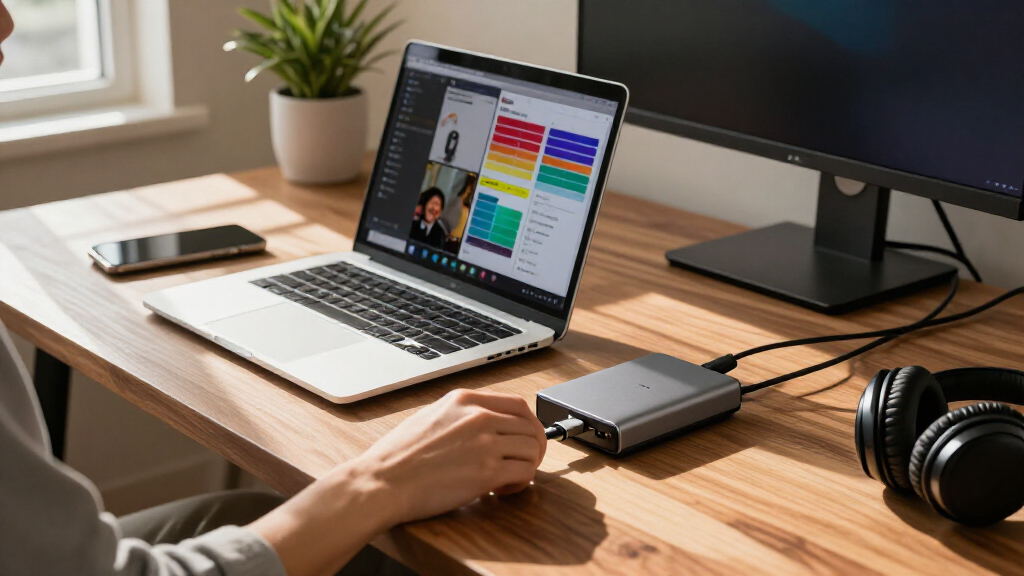
I compared these USB-C docking stations by the problems they solve at a desk: display expansion, useful connection variety, laptop charging, and the effort required to set them up. I gave more weight to a balanced combination of ports and everyday usability than to a large port count alone. Models with dual HDMI, DisplayPort, VGA, or triple-display support were judged by how clearly they serve distinct monitor needs, not by the number of video connectors in isolation.
The ranking favors options that appear broadly useful for common laptop workstations, then places more specialized, feature-rich, or brand-specific docks where their extra capability matters. I also considered form factor and flexibility, including compact hubs and the Anker Nano’s detachable hub. Because host USB-C ports and operating systems can limit charging or external displays, I treat stated features as capabilities to verify against the laptop rather than guarantees for every setup; the product list does not provide enough detail to assume identical compatibility across models.
Factors to Consider When Choosing USB-C Docking Stations
Choosing among USB-C docking stations is less about collecting the most ports and more about matching the dock to the laptop, monitors, and way you work. I’d settle the display and power questions before comparing extras, since either mismatch can make a feature-rich dock disappointing.
Match the dock to your laptop’s USB-C capabilities
A USB-C connector describes the plug, not everything the laptop can do through it. Check the laptop’s specifications for display output, data support, and charging input before choosing a dock. A dock with several video ports cannot add display capability that the host computer lacks. This is especially relevant when considering triple-display models: the computer’s graphics hardware and operating system can limit the number or arrangement of external screens. If the manufacturer’s compatibility information is unclear, favor a simpler setup with a return option rather than assuming every port will work as expected.
Choose monitors by resolution, refresh rate, and workload
Count your monitors, then check the resolution and refresh rate you need on each one. A dock may advertise two or three display outputs without supporting every combination at the highest settings your screens allow. Office documents and messaging usually place different demands on a setup than high-refresh gaming or detailed video work. Also check whether the displays share bandwidth with USB data and other connections, since using several high-resolution screens can constrain what the dock supports at once. Buy for the actual display arrangement you plan to run, not simply the largest number printed in a product title.
Read power delivery as a system, not a headline number
Power delivery affects whether a dock can charge a connected laptop while peripherals are in use, but the number on a listing may not equal the wattage that reaches the computer. Check the laptop’s charging requirement, the dock’s laptop-facing output, and whether a separate power adapter is needed or included. A high-power dock may make more sense for a demanding laptop, while a lightweight computer can often use a less elaborate setup. If the dock’s stated figure includes power for the dock or accessories, it may not all be available for charging the host. Confirm these details before buying, particularly when replacing a laptop’s original charger.
Prioritize the ports you use every day
Write down the devices that need to stay connected: monitors, wired network, storage, keyboard, mouse, audio, or card readers. Then check the type and speed of the ports, not just their count; two USB ports can serve very different needs depending on their data rates and intended use. A large dock can reduce adapter clutter, but unused connections add little value if they make the setup bulkier. For a fixed desk with many accessories, a 13- or 14-in-1 design may reduce cable swapping. For travel or a minimal workstation, a compact hub is often easier to carry and manage.
Decide whether you need a dock or a portable hub
Docking stations and hubs overlap, but their best use cases differ. A compact hub is easier to pack and suits occasional monitor or peripheral connections, while a larger dock can act as the central connection point for a permanent desk. Detachable designs can bridge both roles, though they may involve more parts to keep track of and reconnect. Consider cable length, where the unit will sit, and whether you want one connection to restore your full workstation. If you rarely move the laptop, prioritize stable desk connectivity; if you travel often, portability may matter more than extra ports.
Check operating-system and display-method support
Two docks with similar connector layouts can behave differently across Windows, macOS, and other systems. Look for explicit operating-system support and check whether the dock relies on a particular display technology or driver. Some computers support multiple external displays natively, while others impose stricter limits or mirror screens in certain configurations. This can affect whether two HDMI ports provide independent desktops or duplicate an image. Confirm the exact laptop-and-operating-system combination before relying on a multi-monitor feature for work.
Frequently Asked Questions
Will a dual-HDMI USB-C dock run two independent monitors from my laptop?
Not necessarily: the laptop must support the required number of external displays through its USB-C connection, and the operating system can affect how those screens behave. Some combinations mirror the same image instead of extending the desktop. Check the laptop maker’s display limits and the dock’s compatibility details for your operating system before buying. Also verify the resolution and refresh rate supported when both outputs are active, rather than relying on the single-monitor maximum. This check matters more than the presence of two HDMI sockets alone.
Can I use a USB-C docking station to charge my laptop and connect monitors at the same time?
Many docks are designed to handle charging and peripherals together, but the dock needs a power source and the laptop must accept charging over USB-C. Check the dock’s laptop-facing power output against the laptop’s charging requirement; a headline power figure may not represent the amount delivered to the computer. A heavily loaded dock can also have less power available for the laptop if its specifications allocate output among devices. If you rely on the dock as your main charger, confirm the exact power arrangement in the product documentation. Keep the laptop’s original charger until you know the dock meets its needs.
Is a triple-display dock a good choice if I only use two monitors today?
It can be useful if you expect to add another screen, but an extra display output does not guarantee that your laptop can drive three external monitors. Check the host computer’s display limit and the dock’s supported screen combinations first. If your current two-monitor setup is likely to stay that way, a dual-display model may offer a simpler fit without paying attention to unused capability. A third output is most useful when your laptop and operating system support it and your desk has a clear need for another screen. Match the dock to a likely workstation plan, not a hypothetical maximum.
Should I choose a dock with more ports or a smaller 8-in-1 hub?
Start with the devices you connect at the same time, then choose the smallest option that supports them with the right port types. An 8-in-1 model may be a better desk or travel companion when you mainly need displays, charging, and a few accessories. A 13- or 14-in-1 dock becomes more useful when you regularly connect several peripherals and want fewer adapters or cable swaps. Extra ports can add bulk and complexity without helping a lean setup. Leave room for one or two future devices, but do not treat the biggest port count as the safest choice by default.
Will a USB-C dock work with any laptop that has a USB-C port?
No. USB-C refers to the connector shape, while laptop support for display output, data, and charging varies by model. A port may handle data but not video, or it may support fewer external displays than the dock offers. Some docks also have operating-system or driver requirements that affect multi-monitor use. Check the laptop’s technical specifications and the dock’s compatibility information for the exact model before ordering. If those details are missing, ask the manufacturer rather than assuming connector fit means full feature support.
Conclusion
For a balanced desk setup, I’d choose the Anker PowerExpand 8-in-1 as the best overall fit in this lineup. The Selore 8-in-1 is my value-oriented choice for buyers who want dual HDMI in a compact feature set, while the Anker Prime 14-in-1 is the best premium direction for a workstation that needs a broader connection selection. Beginners who want a straightforward starting point should look at the Acer 9-in-1 or Anker Nano 8-in-1, then verify compatibility with their laptop. For specific needs, choose the Acer 11-in-1 or Acer 13-in-1 for a potential triple-display setup, the HP USB-C G5 Essential Dock for an office-oriented connection point, or the Anker Nano 13-in-1 if the detachable hub suits both desk and portable use. Before picking any model, match its displays and charging support to your computer; that check matters more than a long port list.
Evergreen bestsellers Picks
bestsellers
As an affiliate, we earn on qualifying purchases.