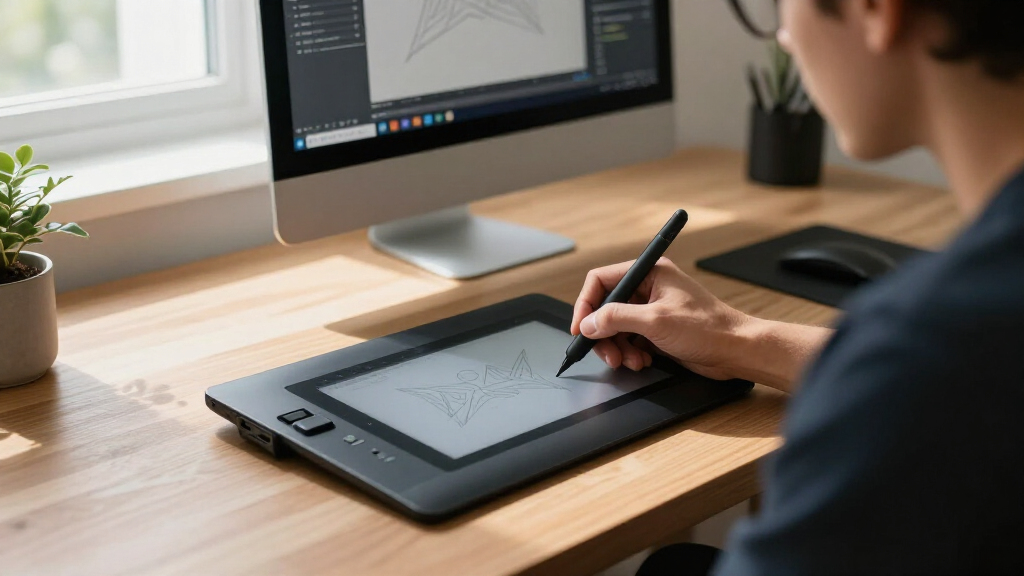
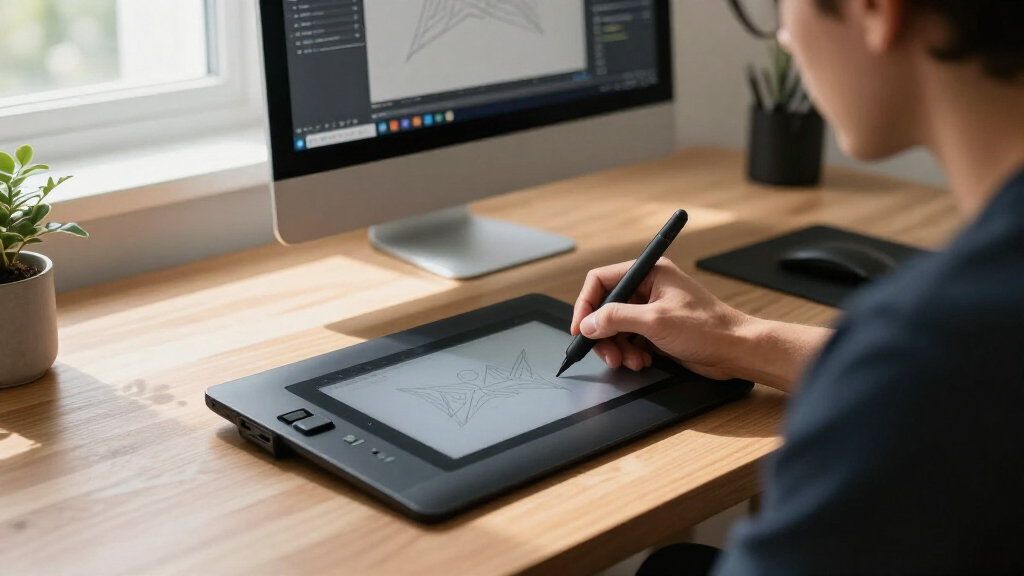
When searching for the best Wacom drawing tablets, it’s important to balance features, size, and price to find the right fit. The Wacom Cintiq 16 stands out as the top overall choice, offering a high-resolution display and precise pen control. For those on a budget, the Wacom Intuos Small provides excellent value, especially for beginners. Meanwhile, the Wacom Cintiq Pro 17 is ideal for professionals needing 4K clarity and advanced features. The main tradeoffs involve screen size versus portability and price versus performance. Continue reading for a detailed breakdown of these options to help you find the best Wacom tablet for your creative needs.

Get the latest gadgets delivered free with Prime
- Fast, free delivery on millions of items
- Prime Video, Amazon Music and more included
- Member-only deals all year
Complete the kit



Key Takeaways
- High-resolution screens significantly enhance detail work but come at higher prices.
- Portability is a key advantage of smaller, wireless models for on-the-go creators.
- Professional-grade tablets like the Cintiq Pro 17 offer advanced features but require a larger budget.
- Entry-level tablets like the Intuos series deliver solid performance for beginners without breaking the bank.
- Build quality and pen responsiveness are consistent across top-tier models, but screen size and features vary greatly.
| Wacom One 14 Drawing Tablet with IPS Full HD Screen and Pen |  | Best for Beginners and Students | Display Size: 14 inches | Display Type: IPS Full HD | Color Accuracy: 98% sRGB | VIEW LATEST PRICE | See Our Full Breakdown |
| Wacom Cintiq 16 Drawing Tablet with QHD Screen & Pro Pen 3 |  | Best for Professionals and Serious Artists | Display Size: 16 inches | Resolution: 2560 x 1600 (2.5K WQXGA) | Color Coverage: 99% DCI-P3, 100% sRGB | VIEW LATEST PRICE | See Our Full Breakdown |
| Wacom Intuos Small Wired Graphic Drawing Tablet with Pen and Software |  | Best for Students and Beginners on a Budget | Size: Small | Connectivity: Wired | Pen Technology: EMR, Battery-free | VIEW LATEST PRICE | See Our Full Breakdown |
| Wacom Intuos Medium Bluetooth Graphics Drawing Tablet, Portable for Teachers, Students and Creators, 4 Customizable ExpressKeys, Compatible with Chromebook, Mac OS, Android, Windows – Pistachio |  | Best Wireless for Flexibility and Versatility | Connectivity: Bluetooth and USB-A | Size: Medium | ExpressKeys: 4 customizable | VIEW LATEST PRICE | See Our Full Breakdown |
| Wacom Intuos Pro Small Drawing Tablet with Pro Pen 2 |  | Best for Creative Professionals | Size: 10.6″ x 6.7″ | ExpressKeys: 6 | Pen: Pro Pen 2 with tilt recognition | VIEW LATEST PRICE | See Our Full Breakdown |
| Wacom Movink 13 Drawing Tablet with OLED Touchscreen & Pro Pen 3 |  | Best Portable Display for Creative Flexibility | Display: OLED touchscreen | Weight: Less than 1 lb | Thickness: 4-6.6mm | VIEW LATEST PRICE | See Our Full Breakdown |
| Wacom Cintiq 16 Drawing Tablet with Screen, 15.4″ Full HD Display, Pro Pen 2 |  | Best Mid-Range Creative Display | Display Size: 15.4 inches | Resolution: Full HD (1920×1080) | Pen Technology: Pro Pen 2 with tilt recognition | VIEW LATEST PRICE | See Our Full Breakdown |
| Wacom Intuos Pro Small Digital Graphics Drawing Tablet for Mac/PC (Renewed) Bundle | | Best Compact Professional Graphics Tablet | ExpressKeys: 6 | Touch Gestures: Yes | Pen: Pro Pen 2 with tilt and pressure sensitivity | VIEW LATEST PRICE | See Our Full Breakdown |
| Wacom Cintiq Pro 17 Drawing Tablet with 4K Touchscreen & ProPen 3 |  | Best High-End Professional Display | Display: 4K Ultra HD | Refresh Rate: 120Hz | ExpressKeys: 8 | VIEW LATEST PRICE | See Our Full Breakdown |
| Wacom Cintiq 22HD 21-Inch Pen Display Tablet |  | Best Large-Screen Pen Display for Detailed Work | Display Size: 22 inches | Resolution: Full HD | Pen Technology: Pressure and tilt sensitive | VIEW LATEST PRICE | See Our Full Breakdown |
| Wacom drawing tablet | Connectivity | Compatibility | ExpressKeys |
|---|---|---|---|
| Wacom One 14 Drawing Tablet wi | USB-C (additional converter required for HDMI) | Windows 10 or later, Mac OS 13 or later, Chromebook | — |
| Wacom Cintiq 16 Drawing Tablet | USB-C with DisplayPort Alt Mode or Thunderbolt 3/4 | — | — |
| Wacom Intuos Small Wired Graph | Wired | Mac, Windows, Chromebook | 4 |
| Wacom Intuos Medium Bluetooth | Bluetooth and USB-A | Chromebook, Mac OS, Android, Windows | 4 customizable |
| Wacom Intuos Pro Small Drawing | USB and Bluetooth | Mac and Windows | 6 |
| Wacom Movink 13 Drawing Tablet | USB-C | — | — |
| Wacom Cintiq 16 Drawing Tablet | — | Mac, PC | — |
| Wacom Intuos Pro Small Digital | USB and Bluetooth | Mac and PC | 6 |
| Wacom Cintiq Pro 17 Drawing Ta | — | — | 8 |
| Wacom Cintiq 22HD 21-Inch Pen | — | — | — |
More Details on Our Top Picks
Wacom One 14 Drawing Tablet with IPS Full HD Screen and Pen
The Wacom One 14 stands out for its large 14-inch display with high color accuracy (98% sRGB), making it ideal for newcomers who want a sizable workspace that closely mimics traditional paper. Its battery-free, pressure-sensitive pen delivers a natural drawing feel, which rivals more advanced models like the Wacom Cintiq 16, but at a more accessible price point—though it still requires an extra adapter for HDMI, adding a layer of complexity. Compared to compact tablets like the Wacom Intuos Small, this model offers a bigger screen but sacrifices portability. It’s best suited for students or hobbyists who prefer a bigger display without the need for advanced features or high-end color precision. The main tradeoff is the necessity for additional accessories and potential compatibility quirks with older hardware.
Pros:- Large 14-inch display with high color accuracy for detailed work
- Responsive, battery-free pen mimics natural drawing sensations
- Includes software trials and training for beginners
Cons:- Requires additional accessories for HDMI connection, which can complicate setup
- Potential compatibility issues with older devices or OS versions
Best for: Beginners or students seeking an affordable, larger-screen drawing experience with reliable performance
Not ideal for: Professional artists or animators needing advanced color fidelity or ultra-high resolution, as the price and features may not meet their demands
- Display Size:14 inches
- Display Type:IPS Full HD
- Color Accuracy:98% sRGB
- Pen:Battery-free, pressure-sensitive
- Compatibility:Windows 10 or later, Mac OS 13 or later, Chromebook
- Connectivity:USB-C (additional converter required for HDMI)
Our verdict“This tablet makes the most sense for newcomers who want a big, reliable screen with straightforward plug-and-play performance.”
Wacom Cintiq 16 Drawing Tablet with QHD Screen & Pro Pen 3
The Wacom Cintiq 16 offers a crisp 2.5K resolution (2560 x 1600), making it perfect for detailed illustration, animation, and color work. Its Pro Pen 3 provides 8,192 pressure levels, tilt support, and exceptional control, surpassing the basic pressure sensitivity of the Wacom One 14. While it demands a compatible computer with USB-C or Thunderbolt, its high-resolution display and wide color coverage (99% DCI-P3) make it ideal for professionals seeking color precision and sharp visuals. Compared to the Intuos Pro Small, this model’s built-in display offers direct drawing rather than working on a separate screen, which can speed up workflow but also adds to the investment. It’s best suited for illustrators, animators, or designers working in high-detail environments who need color accuracy and a large, vivid screen. The premium price is a notable consideration for those on a tighter budget.
Pros:- Sharp 2.5K resolution for detailed, crisp visuals
- Advanced Pro Pen 3 with tilt support and high pressure sensitivity
- Wide color gamut (99% DCI-P3) for accurate color work
- Built-in fold-out legs for flexible positioning
Cons:- Requires a compatible computer with specific ports, limiting flexibility
- High price point may deter casual users
Best for: Professional digital artists and animators who require a high-resolution display and precise color reproduction
Not ideal for: Beginners or casual hobbyists who won’t utilize the advanced display quality or tilt features, as the cost exceeds their needs
- Display Size:16 inches
- Resolution:2560 x 1600 (2.5K WQXGA)
- Color Coverage:99% DCI-P3, 100% sRGB
- Pen Technology:Pro Pen 3 with 8192 pressure levels
- Tilt Support:Yes
- Connectivity:USB-C with DisplayPort Alt Mode or Thunderbolt 3/4
Our verdict“This tablet is best for professionals demanding high resolution and color fidelity in a dedicated creative workspace.”
Wacom Intuos Small Wired Graphic Drawing Tablet with Pen and Software
The Wacom Intuos Small offers a compact, wired solution with a paper-like pen feel, making it accessible for students and newcomers. Its simplicity and compatibility with all major software make it an attractive choice for those just starting out, especially as it includes creative software and online training. Compared to wireless models like the Intuos Medium Bluetooth, this smaller version keeps costs lower but sacrifices mobility—its wired connection can limit movement during extended sessions. Its small size also might not suit artists who prefer a larger drawing area or need extensive workspace. Overall, this pick works well for beginners or educators who prioritize affordability and control over portability or advanced features.
Pros:- High precision with a battery-free pen that mimics paper feel
- Compatible with all major creative software
- Includes software and training resources for beginners
Cons:- Wired connection limits mobility during use
- Small size may restrict more detailed or large-scale work
Best for: Students or beginners seeking an affordable, portable drawing tablet with reliable control
Not ideal for: Professional artists or those requiring wireless freedom and a larger drawing surface, as the wired connection and small size limit flexibility
- Size:Small
- Connectivity:Wired
- Pen Technology:EMR, Battery-free
- ExpressKeys:4
- Compatibility:Mac, Windows, Chromebook
Our verdict“This tablet suits new digital artists or students who want a simple, reliable, and affordable device for learning the basics.”
Wacom Intuos Medium Bluetooth Graphics Drawing Tablet, Portable for Teachers, Students and Creators, 4 Customizable ExpressKeys, Compatible with Chromebook, Mac OS, Android, Windows – Pistachio
The Wacom Intuos Medium Bluetooth combines wireless convenience with versatile compatibility across multiple operating systems, including Chromebook, Mac, Android, and Windows. Its EMR battery-free pen offers precise control, and with 4 customizable ExpressKeys, it streamlines workflow for creators, teachers, and students. Compared with the wired Intuos Small, this model provides greater freedom of movement, ideal for those who prefer working without cables, though the medium size may not appeal to artists needing a larger workspace. Its wireless feature, however, requires registration and setup, which can be a hassle for some. This tablet is best for users who value flexibility and multi-platform compatibility but don’t need an extra-large drawing surface.
Pros:- Wireless Bluetooth connectivity for freedom of movement
- Compatible with multiple OS including Chromebook and Android
- Includes software and training support
Cons:- Limited to medium size, which might not suit detailed work
- Requires software registration to unlock full features
Best for: Educators, students, or creators who prioritize wireless use and cross-platform compatibility in a portable size
Not ideal for: Artists who require a larger drawing area or minimal setup hassle, as the medium size and registration process may be inconvenient
- Connectivity:Bluetooth and USB-A
- Size:Medium
- ExpressKeys:4 customizable
- Compatibility:Chromebook, Mac OS, Android, Windows
- Color:Pistachio
Our verdict“This tablet appeals most to users seeking a wireless, flexible device that can adapt to various systems and creative workflows.”
Wacom Intuos Pro Small Drawing Tablet with Pro Pen 2
The Wacom Intuos Pro Small is designed for serious creators who demand high sensitivity, customization, and workflow efficiency. Its Pro Pen 2 offers tilt recognition, 8192 pressure levels, and exceptional responsiveness, making it a favorite among professional illustrators and designers. The tablet’s six customizable buttons, touch gestures, and wireless connectivity via Bluetooth streamline complex workflows, though its compact size (10.6″ x 6.7″) may feel restrictive for artists who prefer larger canvases. Compared with the Cintiq 16, it lacks a built-in display, but it compensates with portability and a lower price point. This is best suited for pros working in tight spaces or those who prefer working on their own screen rather than a separate display device. Its high price makes it less suitable for casual hobbyists.
Pros:- Wireless connectivity via Bluetooth for flexible setup
- Pro Pen 2 with tilt support and 8192 pressure levels
- Highly customizable buttons and touch gestures for efficiency
- Compact size fits easily into small workspaces
Cons:- High price may be prohibitive for casual users
- Small drawing area might limit larger projects
Best for: Professional artists and designers needing a compact, highly responsive, and customizable drawing tablet
Not ideal for: Beginners or hobbyists on a tight budget, as the premium features come at a high cost and the small size may limit workflow for detailed projects
- Size:10.6″ x 6.7″
- ExpressKeys:6
- Pen:Pro Pen 2 with tilt recognition
- Pressure Sensitivity:8192 levels
- Connectivity:USB and Bluetooth
- Compatibility:Mac and Windows
Our verdict“This tablet is ideal for professional artists seeking a compact, highly sensitive device with extensive customization options for detailed digital work.”
Wacom Movink 13 Drawing Tablet with OLED Touchscreen & Pro Pen 3
This model stands out for its ultra-lightweight design and vivid OLED touchscreen, making it ideal for artists who need to work on the go. Compared to the Wacom Cintiq 16, the Movink 13 offers a more compact, portable form factor with vibrant color accuracy, but its smaller 13-inch display may limit workspace for detailed projects. The high-precision Pro Pen 3 with 8k pressure sensitivity ensures fine control, while customizable shortcut keys enhance workflow. However, it relies on a USB-C connection, which could be limiting for some setups, and the learning curve for touch gestures can be steep for new users.
Pros:- Lightweight and highly portable design
- Vivid, color-accurate OLED display
- High-precision Pro Pen 3 with customizable nibs
- Touch gestures and shortcut keys for efficiency
Cons:- Limited to a 13-inch display, restricting workspace
- Requires USB-C connection for full functionality
- Potential learning curve for new users unfamiliar with touch gestures
Best for: Digital artists and illustrators who prioritize portability and high color fidelity for remote work or field projects.
Not ideal for: Artists requiring a larger workspace or a standalone tablet that doesn’t depend on a computer connection.
- Display:OLED touchscreen
- Weight:Less than 1 lb
- Thickness:4-6.6mm
- Pen sensitivity:8k pressure sensitivity
- Color support:10-bit color, Adobe RGB, sRGB, DCI-P3, Rec. 709, Rec2020
- Connectivity:USB-C
Our verdict“This tablet is perfect for mobile creatives who need vibrant visuals in a compact form but don’t mind a smaller display and connection requirements.”
Wacom Cintiq 16 Drawing Tablet with Screen, 15.4″ Full HD Display, Pro Pen 2
The Wacom Cintiq 16 makes a compelling case for artists who want a high-quality, color-rich display without the premium price of larger models like the Cintiq Pro 17. Its 15.4-inch Full HD screen offers vibrant, detailed visuals, while the Pro Pen 2 provides tilt recognition and 8192 pressure levels for natural, precise strokes. Unlike the Movink 13, it requires a computer connection, but that allows for larger, more comfortable working areas. This model balances affordability with professional features, though the premium price may be a hurdle for casual users, and its size demands dedicated desk space. Nonetheless, it delivers a natural drawing experience akin to working on paper.
Pros:- Vibrant, high-resolution display
- Pro Pen 2 with tilt and pressure sensitivity
- Includes multiple replacement nibs and accessories
- Natural, paper-like drawing experience
Cons:- Requires connection to a computer, not standalone
- Higher price point for casual users
- Size may be bulky for small desks
Best for: Students, hobbyists, and professionals needing a sizable, color-accurate display for detailed work on Mac or PC.
Not ideal for: Artists seeking a standalone tablet or those with limited desk space and budget constraints.
- Display Size:15.4 inches
- Resolution:Full HD (1920×1080)
- Pen Technology:Pro Pen 2 with tilt recognition
- Pressure Sensitivity:8192 levels
- Compatibility:Mac, PC
Our verdict“This display strikes a balance between affordability and professional features, ideal for those needing a larger, high-quality drawing surface.”
Wacom Intuos Pro Small Digital Graphics Drawing Tablet for Mac/PC (Renewed) Bundle
This pick excels for creative professionals who need a small yet powerful tablet. Its compact size makes it ideal for users who travel or work in tight spaces, but that also means it may not suit those requiring larger canvases like the Cintiq Pro 17. The Pro Pen 2 with tilt and pressure sensitivity ensures precise control, while customizable buttons and touch gestures boost productivity. Compared with larger models, it sacrifices some workspace but gains portability and easier storage. The renewed condition might concern durability, so it’s better suited for users comfortable with refurbished gear. Overall, this tablet offers professional-grade features in a manageable form factor.
Pros:- High-precision pen with tilt and pressure sensitivity
- Customizable buttons and touch gestures
- Wireless Bluetooth connectivity for flexibility
- Small, portable design
Cons:- Refurbished condition may impact long-term durability
- Limited working area due to small size
- Requires connection to a computer, not standalone
Best for: Graphic designers and illustrators who need a portable, high-precision device for on-the-go work and limited desk space.
Not ideal for: Artists working on large-scale projects or those preferring a standalone display without needing a PC connection.
- ExpressKeys:6
- Touch Gestures:Yes
- Pen:Pro Pen 2 with tilt and pressure sensitivity
- Connectivity:USB and Bluetooth
- Size:Small
- Compatibility:Mac and PC
Our verdict“This tablet packs professional features into a compact, portable form, ideal for artists on the move who can work within its size limits.”
Wacom Cintiq Pro 17 Drawing Tablet with 4K Touchscreen & ProPen 3
The Cintiq Pro 17 caters to demanding professionals working in animation, VFX, and 3D design who require a 4K display with exceptional detail. Its 17-inch 4K Ultra HD screen, combined with a 120Hz refresh rate, delivers stunning clarity and smooth visuals, surpassing the Full HD options like the Cintiq 16. The ProPen 3 offers 8192 pressure sensitivity levels and high responsiveness, making it suitable for intricate work. The adjustable stand and customizable controls provide comfort during long sessions. While the price is steep and the large size demands a dedicated desk, this tablet is a go-to for those needing the finest visual fidelity and performance for professional projects.
Pros:- Stunning 4K Ultra HD display with vibrant colors
- Responsive ProPen 3 with high pressure sensitivity
- Adjustable stand and customizable controls
- Ideal for detailed, high-end creative work
Cons:- High price point limits accessibility
- Large size requires ample desk space
- Complex setup may challenge beginners
Best for: Professional artists and animators needing top-tier resolution, color accuracy, and comfort for extended creative sessions.
Not ideal for: Hobbyists or those with limited workspace or budget constraints, as it’s a significant investment.
- Display:4K Ultra HD
- Refresh Rate:120Hz
- ExpressKeys:8
- Pen Sensitivity:8192 levels
- Included Accessories:Pro Pen 3, extra grips, nibs, stand
Our verdict“This tablet is designed for professionals who demand unrivaled display quality and precision, justifying its premium cost for serious users.”
Wacom Cintiq 22HD 21-Inch Pen Display Tablet
The Cintiq 22HD offers a substantial 22-inch full HD display, making it suitable for artists who need detailed, large-format workspaces. Its pressure and tilt-sensitive pen replicate traditional tools effectively, and the customizable express keys enhance workflow. Compared with the smaller Cintiq 16, this model provides a bigger canvas, but it also demands more desk space and comes at a higher cost. Its wide viewing angles and natural pen feel make it a favorite among professional illustrators and animators, though new users may face a learning curve, and its setup requires careful planning. For those who prioritize size and display quality, this model stands out.
Pros:- Large 22-inch full HD display
- Natural pen pressure and tilt sensitivity
- Wide viewing angles for comfortable working
- Customizable express keys for quick access
Cons:- Expensive compared to smaller tablets
- Requires a power source and significant setup space
- Steep learning curve for beginners
Best for: Professionals and serious hobbyists who need a large, detailed display for complex illustrations or animations.
Not ideal for: Artists with limited space or those seeking a portable, standalone device.
- Display Size:22 inches
- Resolution:Full HD
- Pen Technology:Pressure and tilt sensitive
- Features:Express keys, customizable shortcuts
Our verdict“This large, detailed display is best suited for artists who need significant workspace and high visual fidelity, accepting the higher cost and setup demands.”
How We Picked
The products in this roundup were selected based on a combination of performance, usability, build quality, and value. We prioritized tablets with responsive pen technology, clear display quality, and compatibility with major operating systems. The ranking also considers user reviews, brand reputation, and unique features that cater to different user levels—from beginners to professionals. Price was a factor, but only when the features justify the investment. Our goal was to identify options that balance performance and affordability, helping different types of creators find their ideal Wacom tablet.| Wacom drawing tablet | Compatibility | Connectivity |
|---|---|---|
| Wacom One 14 Drawing Tablet wi | Windows 10 or later, Mac OS 13 or later, Chromebook | USB-C (additional converter required for HDMI) |
| Wacom Cintiq 16 Drawing Tablet | — | USB-C with DisplayPort Alt Mode or Thunderbolt 3/4 |
| Wacom Intuos Small Wired Graph | Mac, Windows, Chromebook | Wired |
| Wacom Intuos Medium Bluetooth | Chromebook, Mac OS, Android, Windows | Bluetooth and USB-A |
| Wacom Intuos Pro Small Drawing | Mac and Windows | USB and Bluetooth |
| Wacom Movink 13 Drawing Tablet | — | USB-C |
| Wacom Cintiq 16 Drawing Tablet | Mac, PC | — |
| Wacom Intuos Pro Small Digital | Mac and PC | USB and Bluetooth |
| Wacom Cintiq Pro 17 Drawing Ta | — | — |
| Wacom Cintiq 22HD 21-Inch Pen | — | — |
Factors to Consider When Choosing Best Wacom Drawing Tablets
Choosing the best Wacom drawing tablet involves more than just picking the most expensive or feature-rich model. Consider your primary use—whether for professional art, illustration, or casual sketching—and how much portability matters. Display quality is essential for detailed work, but larger screens can be less portable and more costly. Compatibility with your computer or device, as well as pen responsiveness and pressure sensitivity, directly impact your drawing experience. Also, think about budget constraints and future-proofing—investing in a more capable model might save money long-term. Lastly, assess the learning curve; some tablets are more beginner-friendly than others, which can influence your initial setup and ongoing use.Display Quality and Size
For professional artists, screen resolution and color accuracy are critical. A larger display provides more workspace but can reduce portability. Conversely, compact tablets are easier to carry but might limit detail for complex projects. Consider your workspace and whether a pen display (with a built-in screen) or a graphics tablet (connected to a monitor) suits your workflow best. The right balance depends on how often you work on detailed illustrations versus quick sketches.
Pressure Sensitivity and Pen Responsiveness
Pressure sensitivity affects how naturally your strokes respond to your hand pressure, with higher levels offering more control for shading and detailing. Look for models with at least 2048 levels of pressure sensitivity for professional work. Pen responsiveness, including tilt recognition and latency, directly influences your drawing precision. Cheaper tablets often compromise on these factors, leading to a less intuitive experience. For serious artists, investing in a tablet with advanced pen tech pays off in smoother, more accurate lines.
Compatibility and Connectivity
Ensure the tablet seamlessly integrates with your existing setup, whether you’re on Mac, Windows, or ChromeOS. Some models support Bluetooth for wireless use, which adds convenience but might impact battery life. Check for compatibility with your preferred drawing software to avoid frustrations. Also, consider whether you need a pen display with a built-in screen or a more affordable, pen-only tablet that connects to your monitor.
Price Range and Long-Term Value
Prices vary widely, from budget-friendly models to high-end professional displays. While a lower-cost tablet might be sufficient for beginners, serious professionals often find that investing in a higher-priced model delivers better durability, performance, and feature sets. Think about your current needs and future ambitions. Sometimes, paying more upfront results in a longer-lasting, more satisfying investment, especially with models that offer better build quality and more advanced pen technology.
Ease of Use and Learning Curve
Some tablets come with intuitive interfaces and easy setup processes, making them ideal for newcomers. Others might require more configuration, especially professional-grade models with complex features. Consider your comfort level with technology and whether you prefer plug-and-play devices or are willing to spend time customizing settings. User-friendly models can shorten the learning curve, helping you start creating sooner.
Frequently Asked Questions
Can I use a Wacom tablet without a screen?
Yes, many Wacom tablets, such as the Intuos series, are designed as pen tablets without screens. These models connect to your computer and display your work on an external monitor. They are generally more affordable and portable, making them suitable for beginners or those who prefer working on a separate display. However, they may require some adjustment to coordinate your drawing hand with the monitor, which can take practice.
What is the difference between a pen display and a graphics tablet?
A pen display, like the Wacom Cintiq series, has a built-in screen that displays your work directly underneath the pen, providing a more natural drawing experience. In contrast, a graphics tablet connects to a computer and uses an external monitor, requiring you to look at your screen while drawing on a separate surface. Pen displays tend to be more intuitive but are generally more expensive and larger. Your choice depends on your workflow preferences and budget.
Is higher pressure sensitivity always better?
Generally, higher pressure sensitivity allows for more nuanced control, which is beneficial for detailed shading and dynamic strokes. Most professional models offer 2048 or more levels, providing a more responsive experience. However, for casual use or beginner work, 1024 levels may be sufficient. It’s important to match the tablet’s sensitivity to your needs—more sensitivity adds realism but can also increase cost and complexity.
Do I need a Wacom tablet with tilt recognition?
Tilt recognition is useful if you work with brushes or tools that simulate traditional media, as it allows for more natural strokes based on the pen’s angle. Not all creators require this feature, so if your work doesn’t involve complex brush dynamics, you can prioritize other specs like screen size or sensitivity. For digital painters or illustrators, tilt support can enhance realism and control.
How long does a Wacom tablet typically last?
With proper care, Wacom tablets are built to last several years, often 3-5 years or more. The durability of the pen and surface depends on usage frequency and handling. Investing in a higher-quality model usually ensures better longevity, as cheaper models might experience issues like pen calibration drift or surface wear sooner. Regular maintenance and software updates can extend your device’s lifespan.
Conclusion
For general artists and hobbyists, the Wacom Intuos Small offers an affordable, beginner-friendly experience. Professionals needing maximum control and display quality should consider the Wacom Cintiq Pro 17 for its 4K resolution and advanced features. If portability is key, the Wacom Intuos Bluetooth models deliver flexibility without sacrificing too much performance. Budget-conscious users will find the Wacom One 14 a solid entry point, while dedicated digital painters will benefit from the precision of the Wacom Cintiq 16. Ultimately, your choice depends on your skill level, workflow needs, and budget, but each recommended model balances these factors in its own way.
As an affiliate, we earn on qualifying purchases.Evergreen bestsellers Picks

Bose QuietComfort True Wireless Earbuds with Active Noise Cancellation, Black

Ninja Specialty Coffee Maker CM401, 10-Cup Carafe, Fold-Away Frother, Black

Dyson V8 Cyclone Cordless Vacuum