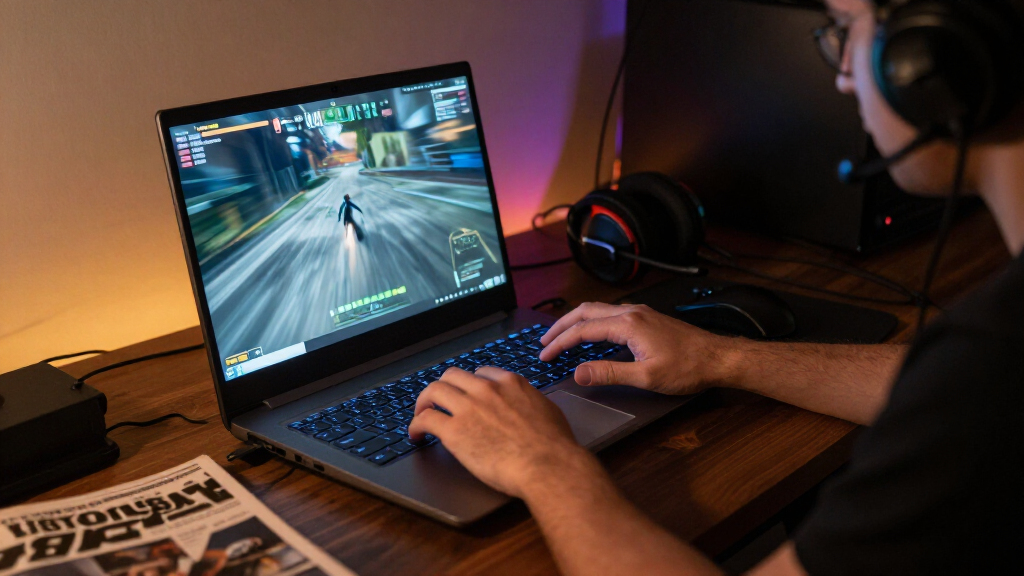

Use this guide to choose a gaming laptop with a high-refresh-rate screen and set it up for smoother gameplay. It is for first-time buyers and current laptop owners who want to understand display specifications, connect the right power and display settings, and check that games are using the screen’s faster refresh rate. Allow 30–60 minutes for setup; comparing models before buying may take longer.

Get the latest gadgets delivered free with Prime
- Fast, free delivery on millions of items
- Prime Video, Amazon Music and more included
- Member-only deals all year

Lenovo Legion 5a (2026) Gaming Laptop, 15.3-inch OLED WQXGA 165Hz Display, AMD Ryzen 7 250, NVIDIA GeForce RTX 5060, 32GB RAM, 1T…
- ✔ Display: 15.3-inch OLED
- ✔ Resolution: 2560 × 1440
- ✔ Refresh rate: 165Hz

ASUS ROG Strix G16 (2025) 16-inch Gaming Laptop
- ✔ Display: 16-inch IPS
- ✔ Resolution: 2560 × 1600
- ✔ Refresh rate: 240Hz

ASUS ROG Strix G16 Gaming Laptop, 16-inch FHD+ 165Hz Display, Intel Core i7-14650HX, NVIDIA GeForce RTX 5060, 16GB DDR5, 1TB PCIe…
- ✔ Display: 16-inch FHD+
- ✔ Resolution: 1920 × 1200
- ✔ Refresh rate and response: 165Hz; 3ms
Difficulty: Beginner | Time: 30–60 minutes
What You’ll Need
Tools & Materials:
- Gaming laptop or shortlisted laptop models
- Laptop charger
- Internet access for driver and game updates
- Optional: external monitor and compatible cable
Knowledge:
- Basic familiarity with your games and their graphics settings
- Ability to open Windows display settings or your operating system’s display controls
Refresh rate is measured in hertz (Hz) and describes how many times the display can update each second. A higher number can make motion look smoother, but the laptop must also produce enough frames per second (FPS) to make full use of it. Check the exact screen configuration for each model: laptops sold under the same product name may have different panels, refresh rates, resolutions, or brightness.
Lenovo Legion 5a (2026) Gaming Laptop, 15.3-inch OLED WQXGA 165Hz Display, AMD Ryzen 7 250, NVIDIA GeForce RTX 5060, 32GB RAM, 1T…
The Legion 5a is our best overall choice because it brings together a 165Hz refresh rate and a higher-resolution OLED panel without stepping up to the bulk and 240Hz focus of the more powerful ASUS. Its 15.3-inch, 2560 × 1440 display gives games more pixel detail than the 1920 × 1200 screen on the RTX 5060 Strix. OLED is a meaningful point of difference for buyers who also care about rich-looking game visuals, though panel preference is personal.Both the Lenovo and the less expensive-in-spec-position RTX 5060 Strix use RTX 5060 graphics and list a 165Hz screen. Lenovo pulls ahead on listed memory, with 32GB versus 16GB, and on resolution. The tradeoff is a product listing that specifies only three ports and caps memory at 32GB. Compared with the RTX 5070 Ti Strix, the Legion gives up both graphics tier and refresh-rate ceiling, so it is not the pick for someone prioritizing maximum competitive frame rates above all else.We would choose it for a mix of gaming and everyday use where display quality and ready-to-go memory matter. Its 165Hz panel is already a fast refresh option, but buyers should keep expectations grounded: resolution and settings can affect how readily games make use of that speed.
Pros:
- 15.3-inch OLED panel with 2560 × 1440 resolution and 165Hz refresh rate
- 32GB DDR5 memory is double the capacity listed for the RTX 5060 ASUS
- RTX 5060 graphics and 1TB SSD suit a broad gaming and general-use mix
- Listed weight of 4.1 pounds is lower than either ASUS model
Cons:
- Product details list only three ports
- Memory is listed with a maximum capacity of 32GB
Best for: Gamers who want a sharp OLED display, 165Hz motion, and 32GB of memory in a single balanced configuration.
Not ideal for: Buyers who need a 240Hz panel, extensive port choices, or memory expansion beyond the listed 32GB maximum.
Bottom line: For a balanced high-refresh-rate laptop with OLED detail and 32GB of memory, the Legion 5a is the strongest all-round fit in this group.
“For a balanced high-refresh-rate laptop with OLED detail and 32GB of memory, the Legion 5a is the strongest all-round fit in this group.”
ASUS ROG Strix G16 (2025) 16-inch Gaming Laptop
When the highest refresh ceiling is the priority, the ROG Strix G16 with RTX 5070 Ti separates itself from the two 165Hz models. Its 16-inch, 2560 × 1600 panel reaches 240Hz, and the listed RTX 5070 Ti graphics and Core Ultra 9 275HX place it at the top of this lineup for hardware ambition. That pairing is the clearest fit for buyers focused on fast-paced games and a display that can show more frequent updates when a game produces them.Against the Legion 5a, this ASUS adds 75Hz to the listed refresh rate and moves to stronger listed graphics, while keeping 32GB of DDR5. It also has a larger, higher-resolution screen. The cost in practicality is clear from the specs: at 5.8 pounds, it is the heaviest option, and the supplied port details name only one USB port and one Thunderbolt port. The Lenovo is easier to carry and the other Strix has tool-free access details, but neither matches this model’s 240Hz ceiling.We would favor this configuration for a desk-centered setup where graphics headroom and refresh rate matter more than carrying weight. Its cooling system and upgradeable design add flexibility, but the limited port listing is worth checking against your peripherals before choosing it.
Pros:
- 16-inch 2560 × 1600 display with a 240Hz refresh rate and 3ms response time
- RTX 5070 Ti graphics are the strongest listed in this comparison
- 32GB DDR5 memory and 1TB PCIe 4.0 SSD
- Vapor chamber, tri-fan cooling, and liquid metal chipset cooling
Cons:
- Listed weight of 5.8 pounds makes it the heaviest option
- Product details list only one USB port and one Thunderbolt port
Best for: Competitive and demanding-game players who want the lineup’s highest listed refresh rate and strongest listed GPU.
Not ideal for: Frequent travelers or buyers who depend on numerous built-in ports and a lighter everyday carry.
Bottom line: Choose this Strix when 240Hz and the strongest listed graphics take precedence over portability and a generous port selection.
“Choose this Strix when 240Hz and the strongest listed graphics take precedence over portability and a generous port selection.”
ASUS ROG Strix G16 Gaming Laptop, 16-inch FHD+ 165Hz Display, Intel Core i7-14650HX, NVIDIA GeForce RTX 5060, 16GB DDR5, 1TB PCIe…
The ROG Strix G16 with RTX 5060 offers a direct route to high-refresh-rate gaming: a 16-inch, 1920 × 1200 display rated at 165Hz and 3ms, backed by an Intel Core i7-14650HX and RTX 5060. Its resolution is lower than the Legion’s 2560 × 1440 OLED panel, which means fewer pixels to render and a less detailed image on paper. That can make this Strix a sensible fit for buyers who value responsiveness and a larger screen over the Lenovo’s display richness.It shares the same 165Hz refresh ceiling and RTX 5060 tier as the Legion, but Lenovo brings twice the listed memory and an OLED screen. This ASUS counters with tool-free RAM and SSD access, which makes future component changes more approachable, plus Wi-Fi 7 and a cooling setup that uses a vapor chamber, three fans, and liquid metal. The main caveats are only 16GB of memory and a listed battery life of two hours; this is better considered a plugged-in gaming machine than a long-running portable.Compared with the 240Hz Strix, this model gives up the higher refresh rate and RTX 5070 Ti graphics, but its 165Hz display remains fast for a wide range of gaming. Choose it when upgrade access and a 16-inch FHD+ screen matter more than OLED contrast, higher resolution, or the highest frame-rate ceiling.
Pros:
- 165Hz display with a listed 3ms response time
- Intel Core i7-14650HX and dedicated RTX 5060 graphics
- Tool-free RAM and SSD access supports future upgrades
- Vapor chamber, tri-fan cooling, and Wi-Fi 7
Cons:
- Listed battery life is two hours
- 1920 × 1200 resolution is lower than the Lenovo and 240Hz ASUS
- 16GB memory is half the amount listed for the other two models
Best for: Players who want a 16-inch 165Hz display, RTX 5060 graphics, and convenient RAM and SSD access.
Not ideal for: Buyers who want OLED, 32GB of memory out of the box, longer listed battery life, or a 240Hz screen.
Bottom line: This Strix is the upgrade-friendly 165Hz choice, provided its 16GB memory and short listed battery life suit your setup.
“This Strix is the upgrade-friendly 165Hz choice, provided its 16GB memory and short listed battery life suit your setup.”
As an Amazon Associate we earn from qualifying purchases.
Before You Start
Decide which games you play and whether you value smooth motion, detailed graphics, portability, battery life, or a balance of these. A high-refresh screen does not by itself guarantee high FPS; the processor, graphics chip, cooling, power settings, and game settings all affect performance. Gaming laptops generally perform best when plugged into their charger, and battery life can drop quickly during demanding play.
When comparing models, check the manufacturer’s specifications for the specific configuration and read independent reviews for screen quality, cooling, fan noise, and sustained gaming performance. Do not compare refresh rates alone: resolution, response behavior, brightness, color quality, and the laptop’s graphics performance matter too.
Step-by-Step Instructions
Step 1: List your games and priorities
Write down the games you play most, the resolution you want, and your priorities. Fast competitive games may benefit more from a high refresh rate than slower strategy or story games. Decide whether you also need the laptop for travel, school, work, or long unplugged sessions.
Tip:Set a budget that includes any accessories you need, such as a headset, mouse, or external monitor.
Check: You have a short list of games and a clear order for your priorities, such as smooth play, image detail, portability, or price.
Step 2: Compare display specifications
Check the exact panel’s refresh rate, resolution, size, brightness, and panel type in the manufacturer’s specifications. Treat 120 Hz or higher as a useful starting point for high-refresh gaming; some models offer 144 Hz, 165 Hz, 240 Hz, or more. Compare the resolution with the graphics hardware: driving more pixels can make it harder to reach very high FPS.
Tip:Look for the specifications of the configuration you can actually buy. A product page may show options that are not included in every version.
Check: You can identify the screen’s native resolution and maximum refresh rate for each shortlisted configuration.
Step 3: Check graphics, cooling, and power
Compare the laptop’s graphics chip and processor with performance results for your games at your chosen resolution. Read reviews that report sustained gameplay, temperatures, fan noise, and performance while plugged in. Check whether the laptop’s charger is included and whether its cooling system can maintain performance during long sessions.
Tip:FPS estimates vary by game, settings, drivers, and laptop power limits. Prefer results from the same laptop configuration over broad claims about a graphics chip.
Check: Your shortlist has a graphics chip with review results that meet your expected performance, plus a cooling and power setup suited to gaming.
Step 4: Buy a configuration that fits your needs
Select the model with the display, graphics performance, memory, storage, and ports you need. Check the return period and warranty terms before ordering, especially if you cannot view the screen in person. Confirm that the listed refresh rate belongs to the selected configuration.
Tip:If you plan to use a high-refresh external monitor, check that the laptop has a compatible video output and that the port supports the monitor’s resolution and refresh rate.
Check: Your order or current laptop’s specifications confirm the screen’s maximum refresh rate and the ports you plan to use.
Step 5: Update the laptop and connect power
Place the laptop on a firm surface with its air vents unobstructed. Connect its supplied charger, connect to the internet, and install operating system, graphics, and manufacturer updates. Restart if prompted, then open the laptop maker’s control app and select a performance profile for gaming if one is available.
Tip:Keep vents clear of blankets, soft furniture, and dust. A blocked intake or exhaust can reduce performance and raise temperatures.
Check: The laptop is updated, plugged in, and running a suitable performance profile without blocked vents.
Step 6: Set the display to its highest refresh rate
Open your operating system’s display settings, select the built-in screen, and choose its highest available refresh rate. In Windows, open Settings, select System, then Display, then Advanced display, and choose the refresh rate from the menu. If your system uses a different operating system, use its display controls. Keep the native resolution selected unless you have a specific reason to change it.
Tip:If the faster rate is missing, check for graphics driver updates and manufacturer display settings. Some laptops offer refresh-rate or power-saving controls in their control app.
Check: The display settings show the intended screen operating at the selected high refresh rate.
Step 7: Configure a game and compare performance
Launch one of your regular games and check its video settings. Select the laptop display, use a supported resolution, and choose a frame-rate limit that suits the game and laptop. Lower demanding settings such as shadows or reflections if FPS falls well below the screen’s refresh rate. Use the game’s FPS display or a trusted performance overlay to check actual performance during play.
Tip:Some games cap frame rates by default or start in a mode that does not use the display you expect. Check both in-game settings and the system display selection.
Check: The game runs at a stable frame rate, and motion looks smooth during movement. The reported FPS is in a range the laptop can sustain in that game and scene.
Step 8: Test optional external displays
If you use an external monitor, connect it through a compatible laptop port and cable, then select the monitor in display settings. Set its supported resolution and refresh rate separately from the built-in screen. Check the monitor’s manual and the laptop’s port specifications if the desired rate does not appear.
Tip:A cable or adapter can limit the available refresh rate, particularly at higher resolutions. Test the direct connection before adding adapters or docks.
Check: Display settings show the external monitor at the resolution and refresh rate you intended, and the game opens on the correct display.
Common Mistakes to Avoid
- Choosing a laptop based on refresh rate alone. — Compare graphics performance, screen resolution and quality, cooling, and review results alongside the panel’s Hz rating.
- Assuming the screen automatically uses its maximum refresh rate. — Check display settings after setup and select the fastest available rate.
- Expecting the refresh rate to guarantee matching FPS in every game. — Check real game performance and adjust graphics settings when the laptop cannot sustain the target frame rate.
- Gaming on battery or placing the laptop on a soft surface. — Connect the supplied charger for demanding play and keep the cooling vents unobstructed.
Troubleshooting
Problem: The display settings do not show the advertised refresh rate.
Solution: Confirm that you are viewing the correct screen, install operating system and graphics updates, and check the manufacturer’s display controls. Recheck the exact model configuration; if the rate remains unavailable, contact the seller or manufacturer.
Problem: The game looks choppy despite a high-refresh screen.
Solution: Check that the screen is set to its high refresh rate, connect the charger, and check the game’s FPS cap and graphics settings. Lower demanding settings and retest during the same scene.
Problem: FPS falls during a long gaming session.
Solution: Move the laptop to a hard, open surface, clear dust from vents, and select the manufacturer’s gaming performance profile. Check temperatures and fan operation with the laptop maker’s software; seek service if overheating or unusual shutdowns continue.
Problem: An external monitor runs at a lower refresh rate than expected.
Solution: Check the monitor’s supported modes, laptop port specifications, and cable or adapter rating. Connect directly with a compatible cable and select the monitor’s refresh rate in display settings.
What Success Looks Like
You have a laptop configuration suited to your games, the built-in display is set to its intended high refresh rate, and your test game runs smoothly at a stable FPS. For an external monitor, display settings show its supported resolution and refresh rate, and the game appears on the intended screen.
Next Steps
Save the display and game settings that work well, then check them again after major driver or game updates. Keep vents clear and use the supplied charger during demanding sessions. If performance changes, compare FPS in the same game scene and review any recent changes to graphics settings, power profiles, or drivers.
Frequently Asked Questions
What refresh rate should I look for in a gaming laptop?
For a high-refresh gaming display, start by comparing models at 120 Hz or higher. Choose based on your games, budget, resolution, and the FPS the laptop can sustain; a larger Hz number alone does not guarantee smoother play.
Does a 240 Hz screen make every game run at 240 FPS?
No. The screen can refresh up to 240 times per second, but the laptop and game must produce enough frames to match that rate. Demanding games may run below it, especially at high resolutions or graphics settings.
Why does my laptop show a lower refresh rate on battery?
Some laptops use power-saving modes that limit refresh rate or performance when unplugged. Connect the charger and check the operating system’s display settings and the manufacturer’s power controls.
Can I use a high-refresh external monitor with my gaming laptop?
Yes, if the laptop port, cable or adapter, and monitor support the resolution and refresh rate you want. Check each device’s specifications and select the supported mode in display settings after connecting.
Should I lower graphics settings to get more FPS?
Lower demanding settings if the game’s frame rate is unstable or falls below the range you want. Change a few settings at a time and retest the same scene so you can judge the effect on smoothness and image quality.